
Minimum Price - Feature Guide
Minimum Price sets the lowest price a new product can have in your store. Set it once, and every way you add products follows it. With Hide Cheaper Products on, products you already have are also hidden from visitors while their price is under it.
Use it when cheap products are not worth a place in your store. A $9 product and a $90 product take the same space and the same click, but only one earns a commission worth having.
Who Has It
Accelerator members have Minimum Price from 20 October 2026. Every member has it from 3 November 2026. Until your date, the settings are greyed in Settings > Products and show the date you get them.
Where to Find It
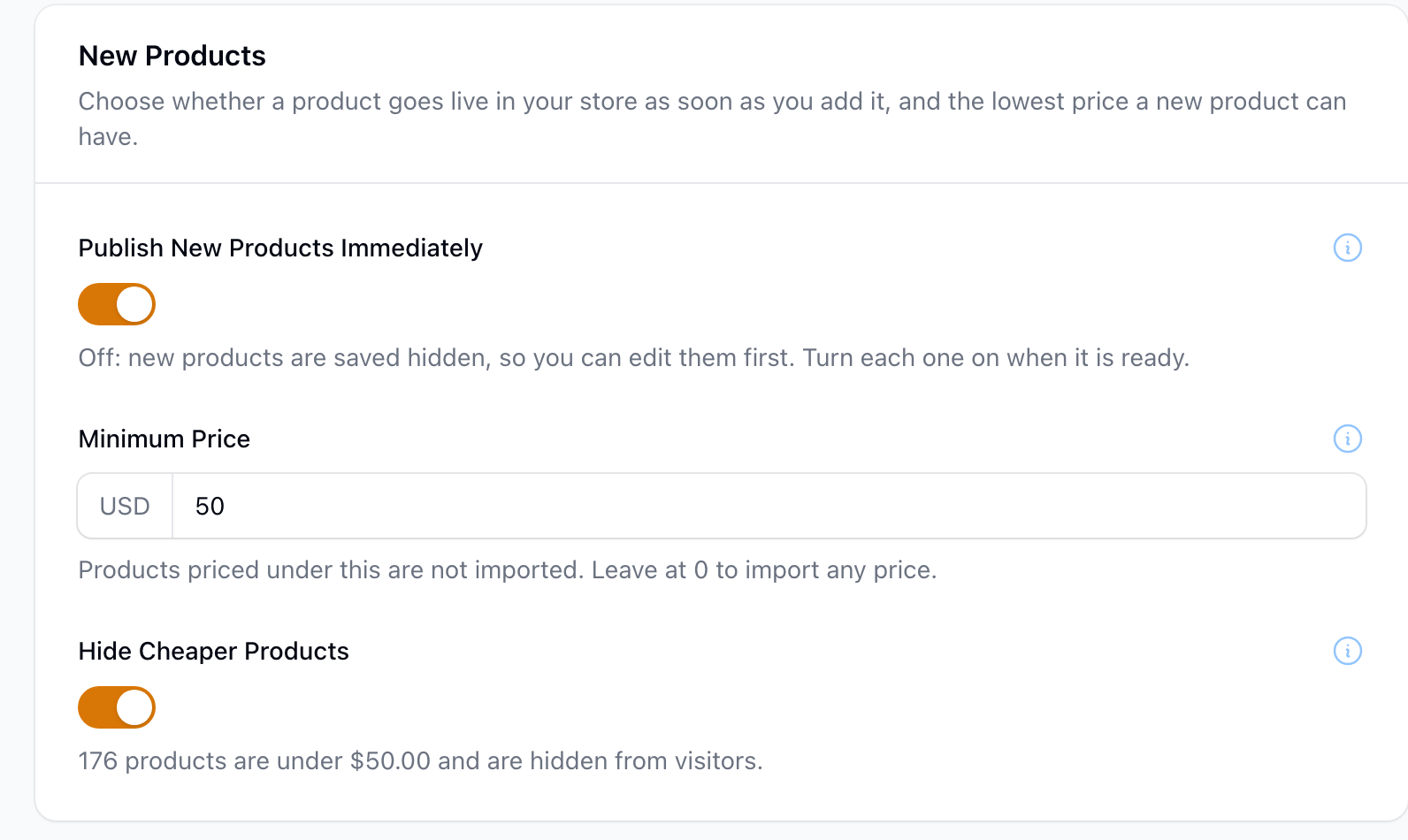
- In your store admin, go to Settings > Products.
- Find the New Products section.
- Enter your Minimum Price. It is in your store's own currency. Leave it at 0 to import any price.
- Choose whether Hide Cheaper Products is on or off.
- Click Save.
Which Imports Follow It
No new product is made from a listing priced under your Minimum Price, however it arrives. Each import tells you what it left out and why.
- Product Finder marks cheaper results "Under Minimum Price", and you cannot import them as new products. You can still attach one to a product you already have.
- Link Importer and Product Importer do not import a link under the minimum. You get a notification for each one. The Product Importer checks the price before it writes anything, so no AI chips are used.
- CSV import counts the rows it left out and gives the reason for each row.
- Product feeds say how many products the minimum left out in the feed's last run message.
- Auto Populators, Keep Fresh and Fill Categories ask the merchant only for products at or over your minimum, then check each result again. If a Keep Fresh run adds nothing because of the minimum, Tools > Keep Fresh says so.
Products you already have do not change when you set a minimum. To hide the cheaper ones, use Hide Cheaper Products.
Product Finder also has its own Minimum Price filter for one search. Your store's Minimum Price applies too, so a search uses whichever is higher.
Products With No Price
Automatic imports (product feeds, Auto Populators, Keep Fresh and Fill Categories) leave out a listing with no price, because nothing shows that it meets your minimum. When you import a product yourself, it goes ahead, and the notification says the minimum was not checked.
Hide Cheaper Products
Prices change. A product that was $60 when you added it can drop to $35 next month. Hide Cheaper Products deals with that.
While it is on, a product whose price is under your Minimum Price is hidden from visitors, the same as a product you have switched off:
- It leaves your category pages, search, feeds and sitemaps.
- Its page shows "not found" to visitors.
- Nothing is deleted. When its price rises, or you lower the minimum, it shows again by itself.
- A product with no price stays visible.
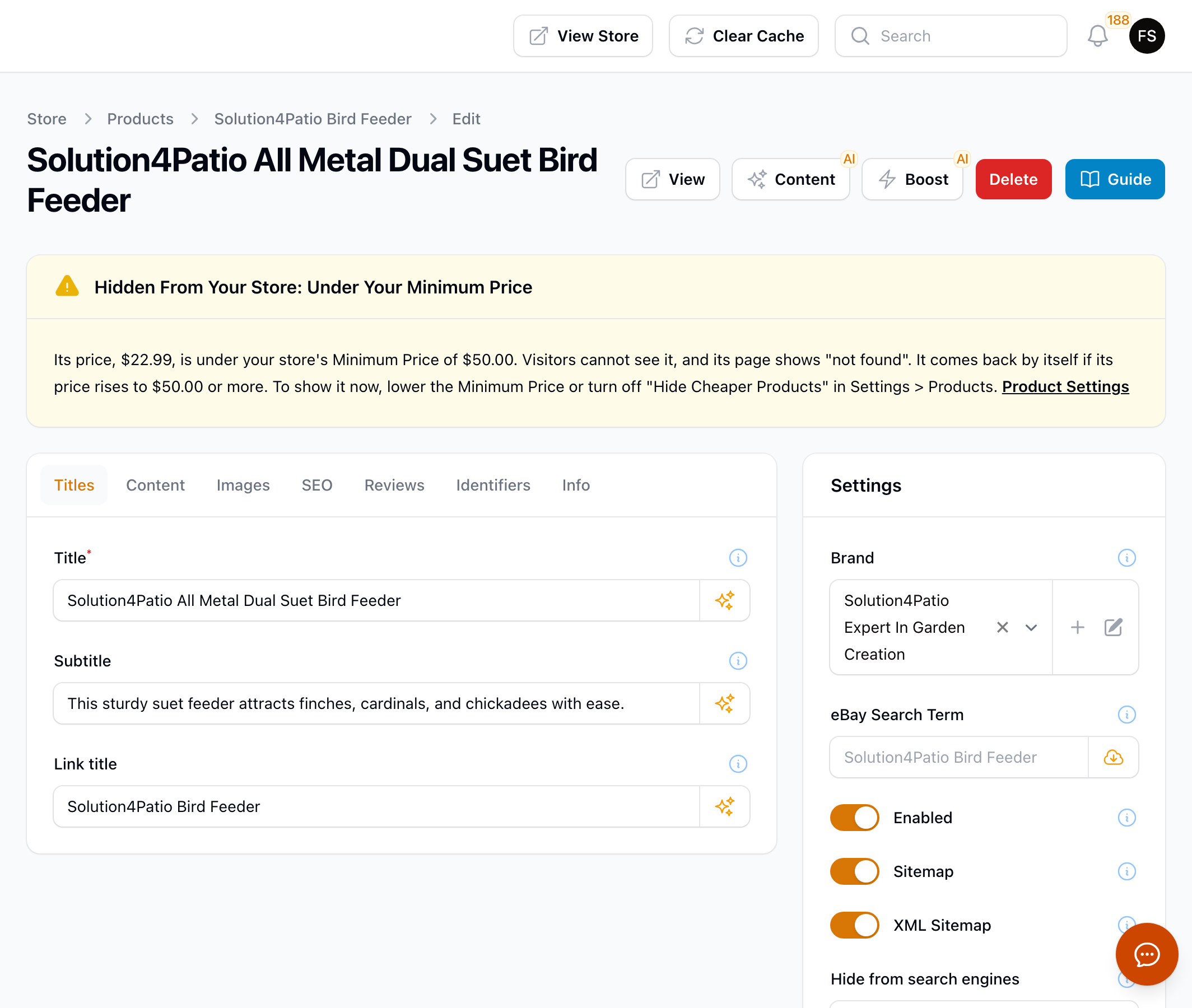
The settings page shows how many products are hidden now. Each hidden product has a warning at the top of its edit page, with its price and the reason. The admin bar on its page says "Hidden: under Minimum Price".
Turn Hide Cheaper Products off if you want the minimum to apply to new products only.
Prices in Other Currencies
If your store shows products from more than one country, some prices are in pounds, euros or other currencies. Before a price is checked, it is converted into your store's currency with the daily exchange rate. For example, on a $50 store a £45 listing counts as about $60 and gets in, and a £30 listing counts as about $40 and is left out.
Searches use the minimum in their own currency too, so an Amazon UK search on a $50 store asks only for products from about £38.
The converted price is close but not exact. A product priced right at your minimum can land a few cents either side of it.
Tips
- Look at the commission you earn on your cheapest sales, then set a minimum that makes each sale worth the click.
- Leave Hide Cheaper Products on, so a price drop never leaves a cheap product on show.
- After you set a minimum, check the count under Hide Cheaper Products. If it hides more than you expect, lower the minimum.
Troubleshooting
A product disappeared from my store
Open the product's edit page. If it has the "Hidden From Your Store: Under Your Minimum Price" warning, its price fell under your minimum. It comes back when the price rises. To show it now, lower the Minimum Price or turn off Hide Cheaper Products.
An import added nothing
Read the import's message: the Product Finder row, the notification, the CSV summary, the feed's last run message or Tools > Keep Fresh. It says if the minimum left products out. Lower the minimum if your niche has few products over it.
The fields are greyed out
Minimum Price opens to your account on the date shown under the field. Accelerator members have it first.