
Store Settings - Feature Guide
You can make changes to how your store works using the Store Settings. Each setting has a description to help you, just hover over the blue "i" icon next to the setting to learn more.
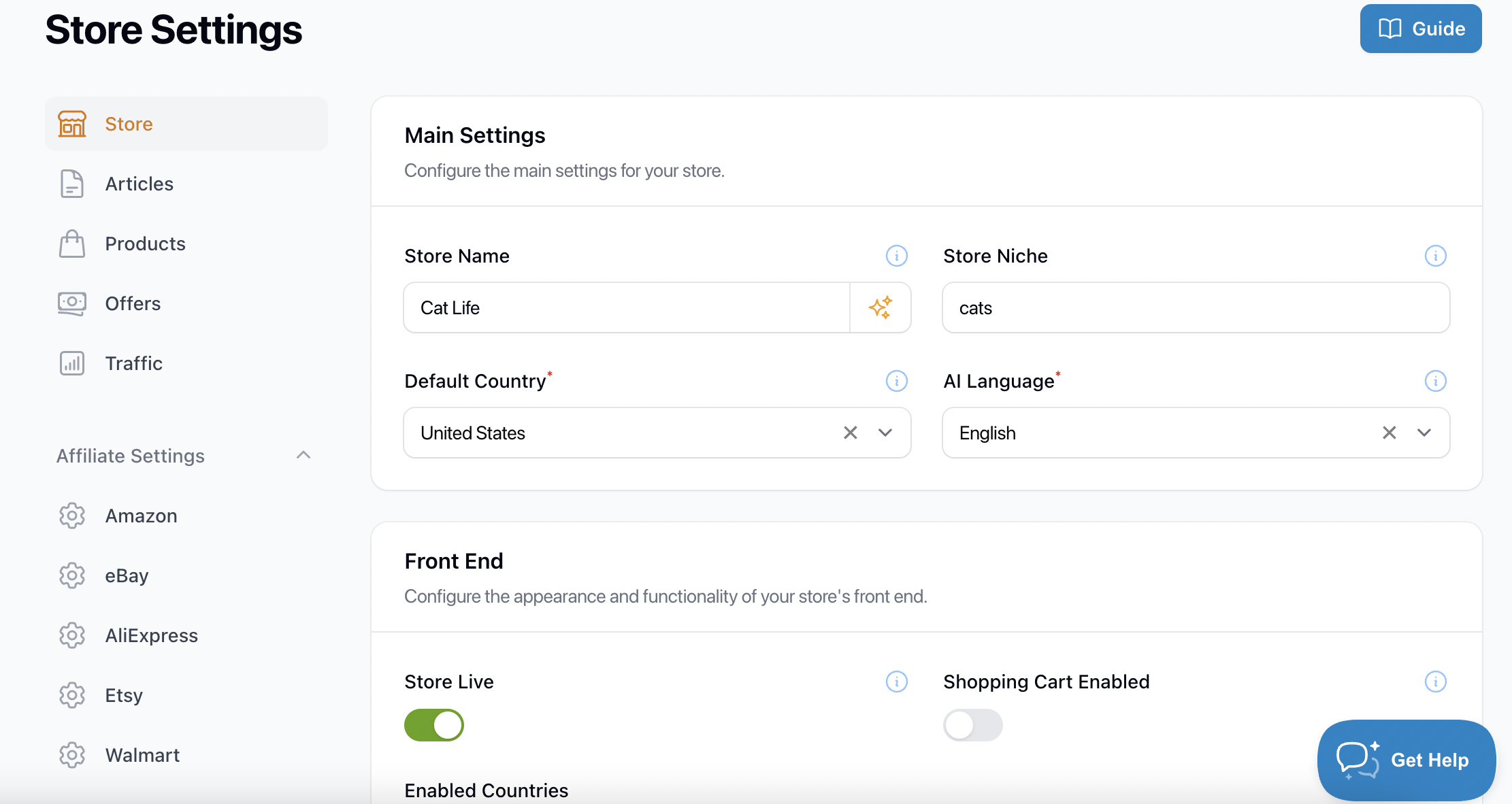
Under the Store settings you can change your store from "Live" to "Coming Soon", add your store name, niche, default country, and AI language. On the main Store Settings you can also find the Custom Scripts, Meta Tags & ads.txt boxes where you can add your details.
In the left menu you can also find Articles settings. Here you are able to add or choose a Default Author. The author can be your personal name or anything else you wish. You do not need to use your name for the default author and you can even generate one with AI using the orange stars icon.
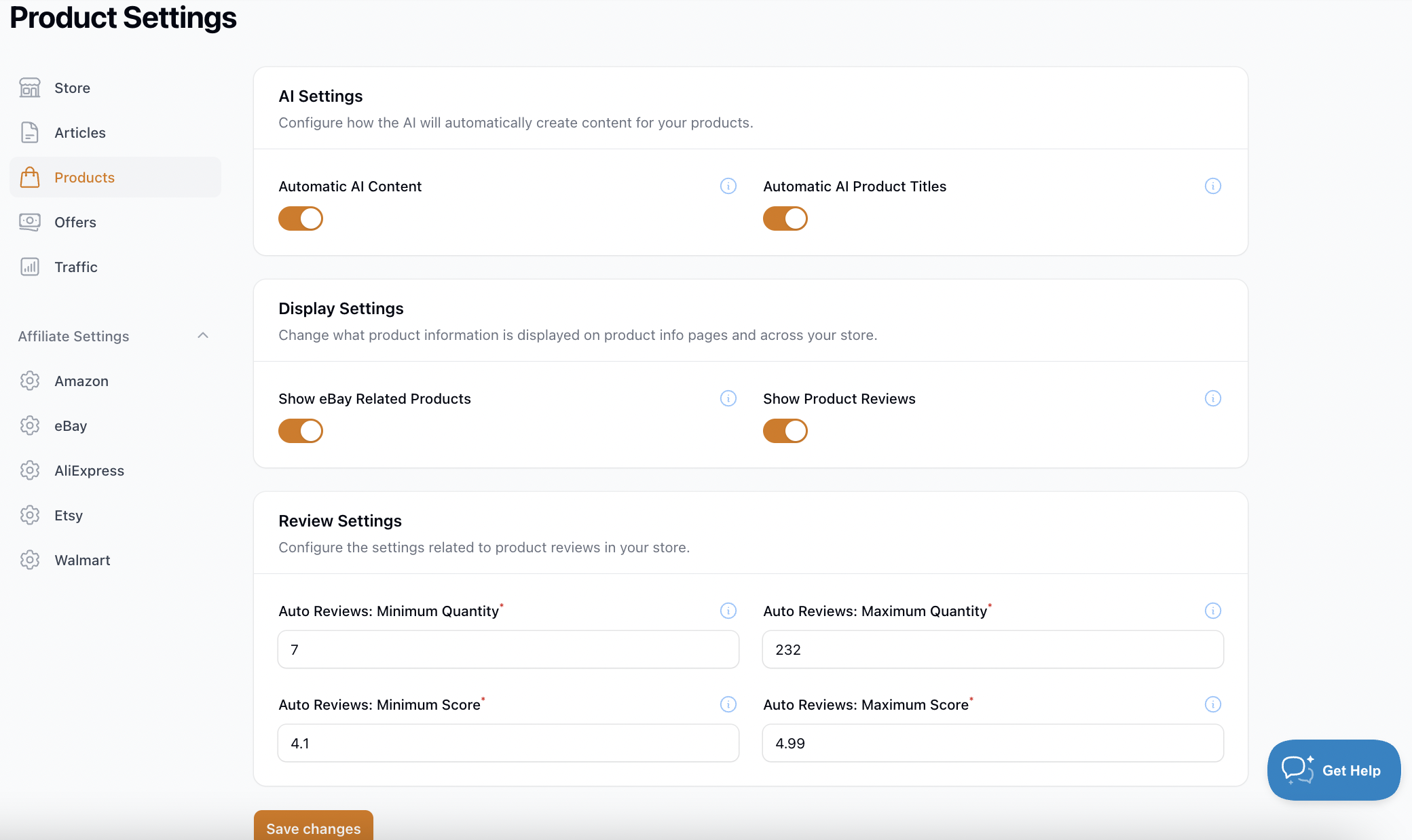
The Products Settings is where you can disable or enable the AI Settings related to products. Here you can switch on or off the automatic AI product content. If you are running low on AI chips, you can disable the Automatic AI Content and Automatic AI Product Titles options, or you can purchase more AI chips.
Please note that you automatically receive free AI chips once a month.
In the Products Settings you can also disable or enable eBay Related Products and configure the product review settings.
Next is the Offers Settings, where you can disable or enable products from different affiliates. If you do not want Walmart products to show on your store, for example, you can disable them in the Offer Settings.
On this page you can also change the Search Settings. You can configure which search buttons are displayed on your products. These search buttons show when no valid offers exist for a product. It allows you to capture more sales via a search affiliate link.
The Search settings control the search box on your store. Go to Store > Settings > Search to choose what visitors can find when they search: products, articles, categories, brands and pages. Articles are included by default, and a search matches words in the article title.
The next is Traffic Settings. Here is where you can add your robots.txt content and IndexNow API Key. If you click on the orange text box that says Open IndexNow it will take you to the settings page for IndexNow. This is located under Traffic > Search Engines settings.
In your Store Settings you can also configure your affiliate settings. By clicking on any of the options, you will be able to add in your affiliate tracking ID/tags and API keys.
NOTE: It is extremely important to add in your affiliate IDs since this is how the affiliate track your clicks and sales. If you do not add your tracking tags/IDs, you will not get paid for the purchases your customers make.