
Keep Fresh - Feature Guide
Keep Fresh keeps your store current by itself. It does two jobs:
- New products every week. It adds new products to your categories, checked against your niche.
- Products that are gone for good. When a merchant removes a product for good, your store deals with the page as you choose, and Keep Fresh adds a new product to replace it.
Who Has It
- Dead products handling is on for every store now.
- New products are on from the start for new stores. On an older store, Accelerator members can switch them on from 20 October 2026, and every member can from 3 November 2026. Until your date, the Keep Fresh switch in Store > Settings > Products is greyed and shows the date you get it.
Part 1: New Products Every Week
What It Does
- Each week it adds up to 5 new products across your categories.
- When your store takes down a product because every offer on it is gone, Keep Fresh adds one more product that week to replace it.
- New products go first in their category, so your store looks current.
How It Picks Products
- It searches every merchant you have switched on. In each category it picks the merchant you have fewest products from first.
- An AI check makes sure each product fits the category and your store's niche.
- It skips products your store already has from the same listing or barcode.
- A new product goes live only after its description is written.
- With Automatic AI Reviews on, each new product also gets a review draft for you to check in Products > Your Reviews.
AI Chips
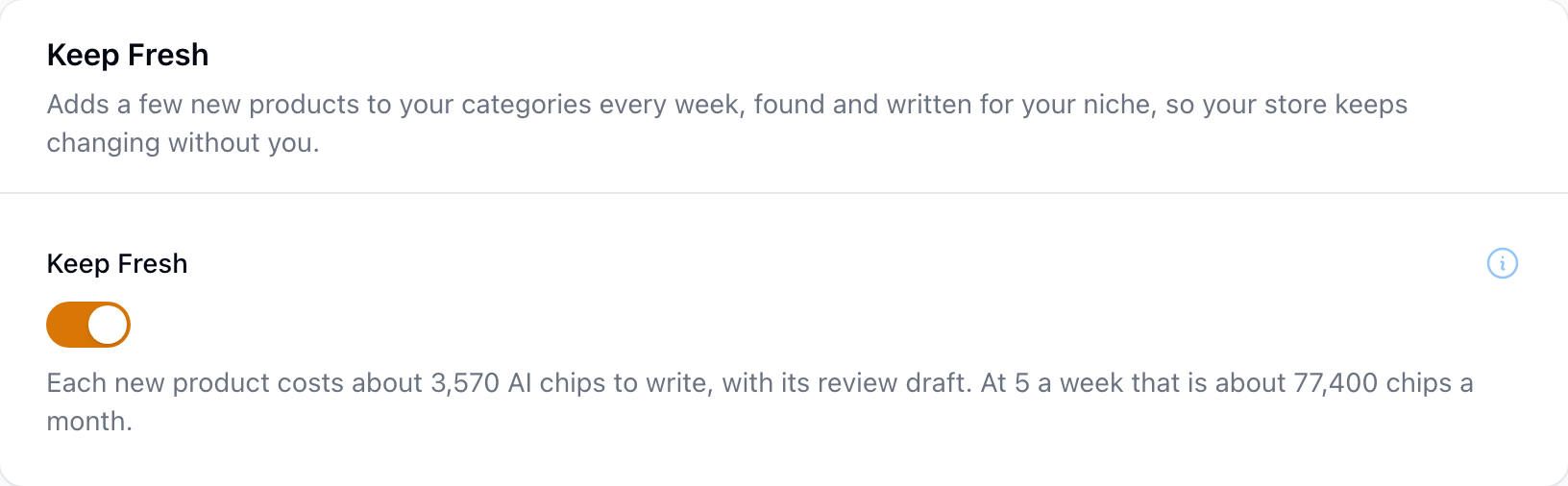
Each new product uses about 3,570 AI chips, with its review draft. At 5 products a week that is about 77,400 chips a month. The Keep Fresh switch shows this forecast and how many chips you have left.
When you have too few chips, Keep Fresh adds nothing. You get a notice in your store admin, and Tools > Keep Fresh shows the reason. It starts again when you have chips.
Keep Fresh never adds a product it could not check. If the AI check cannot run, nothing is added that day and you get a notice.
Turn It On or Off
- In your store admin, go to Store > Settings > Products.
- Find the Keep Fresh section.
- Switch Keep Fresh on or off.
- Click Save.
Keep Fresh is on for new stores. For older stores it is off until you turn it on.
See What It Added
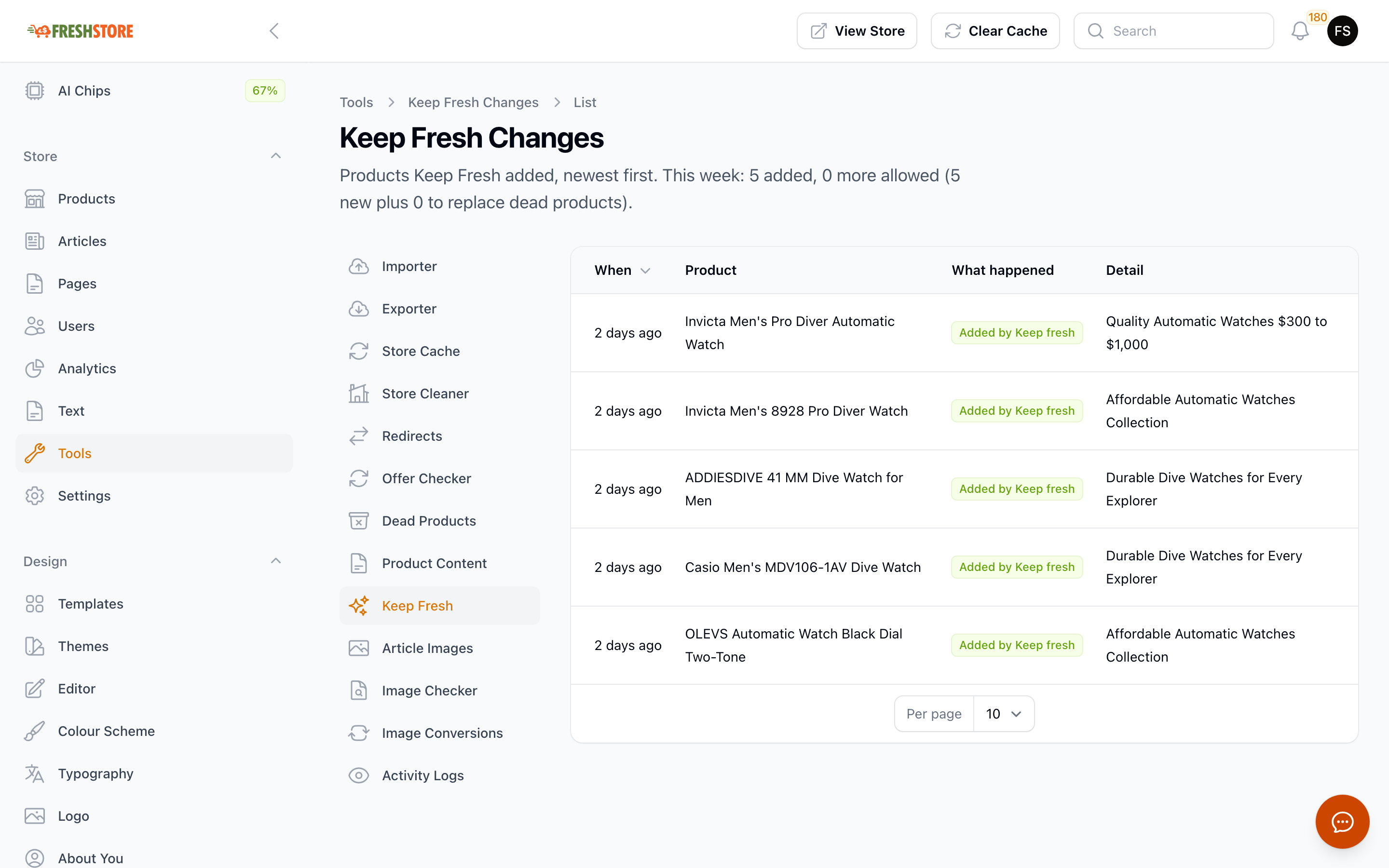
Open Tools > Keep Fresh. The list shows each product it added, newest first. It also shows any day it added nothing, and why. The heading shows how many products it added this week and how many more it may add.
Change One Category
Keep Fresh makes one Auto Populator for each category it fills. You find them under Auto Populators, marked "Keep Fresh". You can change the search term. Keep Fresh picks the merchant each time it runs. To keep Keep Fresh out of a category, switch that populator off.
Part 2: Products That Are Gone for Good
What Is a Dead Product?
A product is dead when every offer on it is dead. An offer is dead when the merchant has removed it for good.
A merchant can say an offer is "not found" by mistake. So your store does not act on the first answer. It asks the merchant again 24 hours after the first answer, and again 5 days after it. The offer counts as dead only when both fresh answers say it is gone.
These never count as dead:
- Out of stock. An offer that is out of stock often comes back. Your store leaves it alone.
- A merchant you switched off. The offer still exists. You chose not to show it.
Where to Find the Setting
- In your store admin, go to Store > Settings > Products.
- Find the Dead Products section.
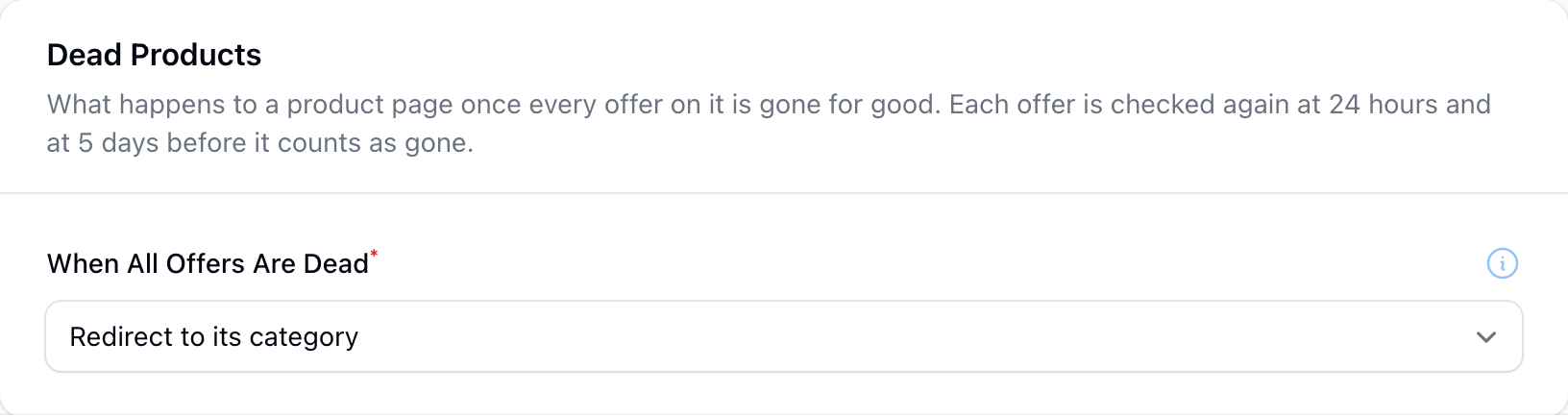
- Open When All Offers Are Dead and pick one of the four choices below.
- Click Save.
The setting covers every dead product in your store. If you change it later, your dead products follow the new choice.
The Four Choices
- Redirect to its category (default). Visitors and search engines go to the product's category with a 301 redirect. If that category is switched off, they go to the nearest live parent category. If there is none, they go to your homepage.
- Remove the page (410 Gone). The page tells search engines the product is gone for good. Visitors see your Page Not Found page, with live products from the same category.
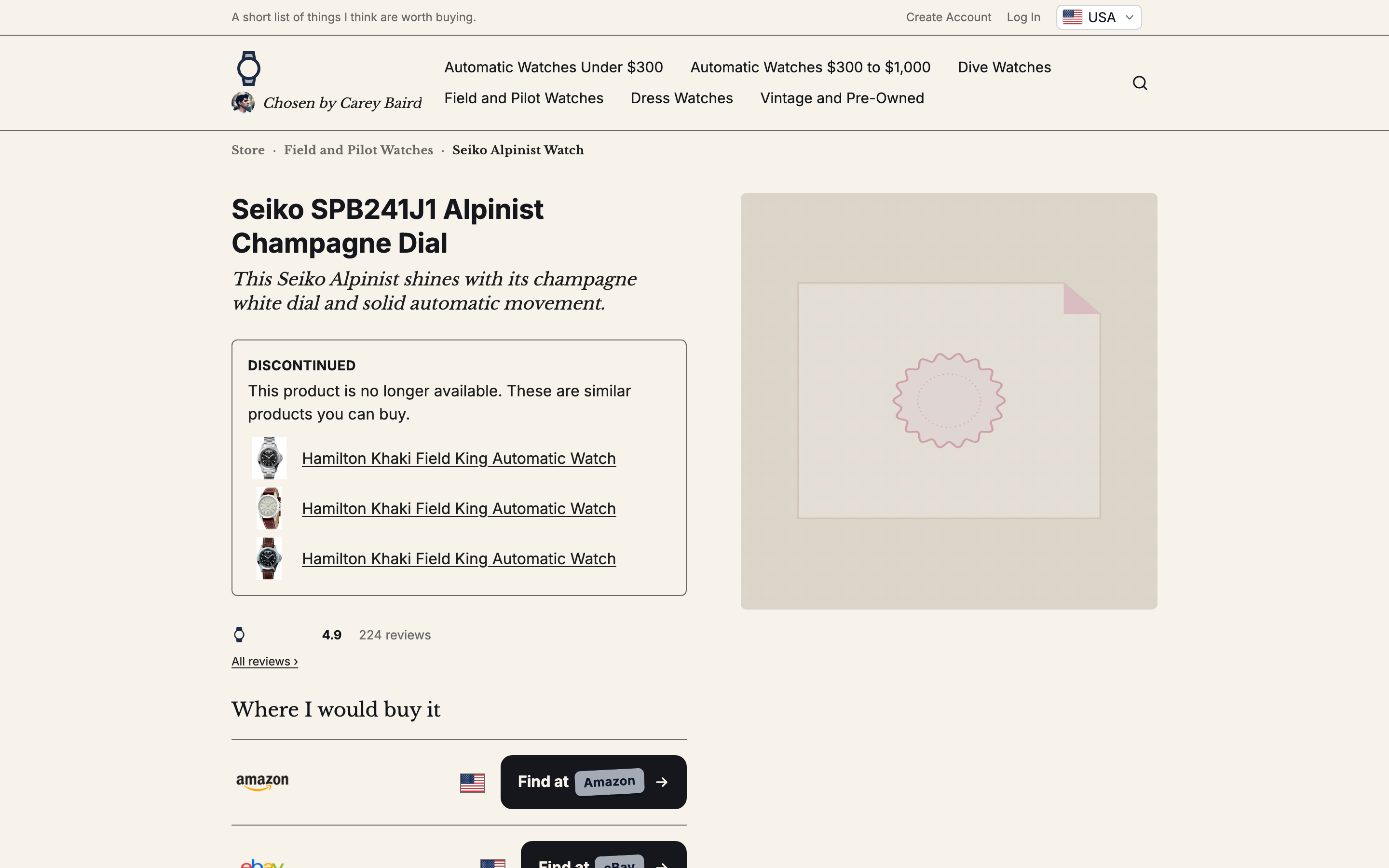
- Keep the page as Discontinued. The page stays live. It shows a "Discontinued" notice above the offer box, and up to 3 similar products that are in stock. The offer box keeps its search buttons, so visitors can still look for the product at the merchant.
- Leave the product as it is. Nothing changes. Use this if you want to deal with dead products yourself.
Your store never deletes a dead product. It only changes what the page does. If an offer comes back, the page comes back by itself.
Which Choice Should I Pick?
- Redirect suits most stores. Visitors land on a page full of products they can buy.
- Discontinued suits a page that still gets visits from search, or that other sites link to. The page keeps its place and offers in-stock products instead.
- 410 Gone suits a store that wants dead pages out of search quickly.
Undoing a Change for One Product
To undo one, open Tools > Dead Products in your store admin and click Restore. Restore puts the product page back the way it was.
What Search Engines See
- With Redirect or 410 Gone, the product leaves your Related Products and your HTML sitemap.
- Your store updates its XML sitemap and sends an IndexNow ping to Bing and Yandex, so they see the change sooner. See IndexNow Search Engine Indexing - Feature Guide.
Older Products With No Offer
Your store may already have products with no offer left. Your store works through them a few at a time. Where the merchant's last offer is still on record, your store checks it live first. If the offer is live again, the product gets it back and stays.
Safety Limits
- Weekly limit. Each store has a weekly limit on how many products can be taken down.
- Outage breaker. If a merchant has an outage and many offers seem to vanish at once, a breaker stops the changes. A merchant outage will not empty your store.
Common Scenarios
| You see this | What happens |
| A merchant removed a product | After the two checks, your store follows When All Offers Are Dead |
| A product was taken down this week | Keep Fresh adds one more product that week to replace it |
| A product is out of stock | Nothing changes |
| You switched a merchant off | Its offers do not count as dead. Nothing changes |
| An offer comes back | The page comes back by itself |
| A dead page still gets visits | Choose Keep the page as Discontinued, or undo that product |
| You ran out of AI chips | No new products are added. You get a notice. It starts again when you have chips |
| A category should stay as it is | Switch off that category's Keep Fresh populator |
| A new product does not suit your store | Delete it, and change the search in that category's Keep Fresh populator |
| You want to handle dead products yourself | Choose Leave the product as it is |
Tips
- Check the dead products setting once. Redirect is on by default. Change it only if another choice suits your store better.
- Look at a Discontinued page before you choose it. Open a dead product on your store to see the notice and the similar products.
- Switch on new products to replace dead ones. For each product taken down, Keep Fresh adds a new one that week.
- You do not need to delete dead products. Deleting a product removes its page for good. The setting keeps your options open, and the page returns if an offer comes back.
Related
- Auto Populators: fill one category from a search you set.
- Redirects - Feature Guide: send old addresses to new ones.