
Product Tags - Feature Guide
Product Tags are your own words for what a product is, like "OO Gauge", "Blue" or "Gift Ideas". Shoppers use them as filters above the products on every category, and each tag gets its own page that search engines can find.
Use them when your shoppers choose by something that cuts across your categories, such as scale, colour, size or era. One tag on a product works in every category the product is in, so you do not need a subcategory for each choice.
Who Has It
Accelerator members have Product Tags from 26 October 2026. Every member has it from 9 November 2026. Until your date, Product Tags shows in your menu with an Accelerator badge, the pages are greyed, and they show the date you get them.
Step 1: Make Your Groups (Optional)
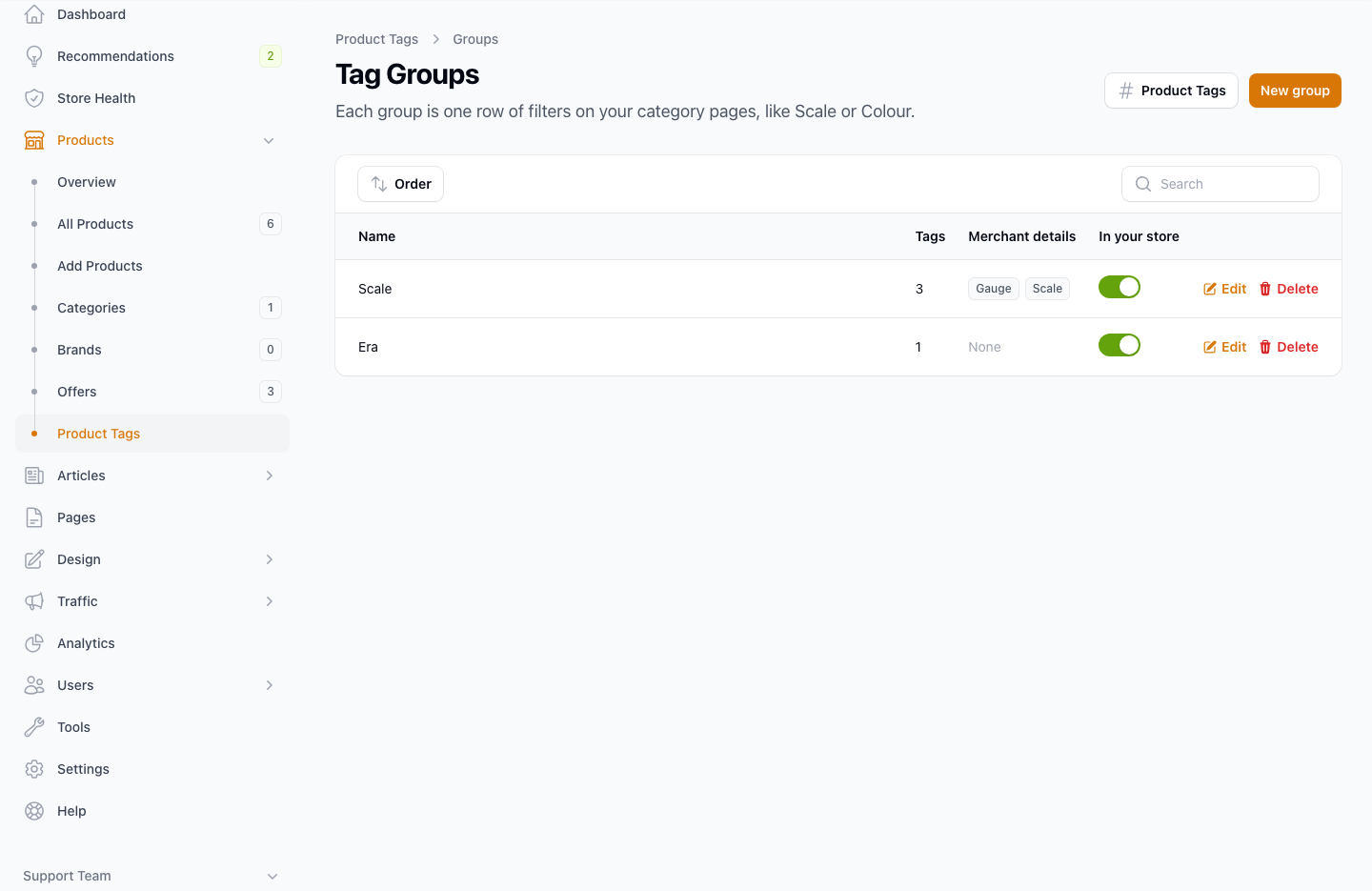
A group gathers tags of one kind, like Scale or Colour. Each group is one row of filters on your categories, with the group name as its label. Tags with no group work too, and share one row.
- In your admin, go to Products > Product Tags.
- Click Groups, then New group.
- Enter a Name, for example "Scale". Shoppers see it as the label of the row.
- Leave Show filters in your store on. Turn it off to hide the row and keep the tags and their pages.
- Optional: in Merchant details, pick the names your merchants use for this, for example Gauge and Scale. Tags in the group then list the values found under those names. Click Read again if you have just added products.
- Save. Use Order to choose the order the rows show in.
Step 2: Make Your Tags
- Go to Products > Product Tags and click New.
- On the Details tab, enter the Name shoppers see, pick a Group (or leave it as No group), and leave Enabled on.
- On the Matching tab, set the rules that tag products for you. See Step 4.
- On the Page tab, write the tag page. See Tag Pages below.
- Click Create.
The list shows each tag's group, how many products have it, and an Enabled switch. Turn a tag off to hide it from shoppers while it stays on its products.
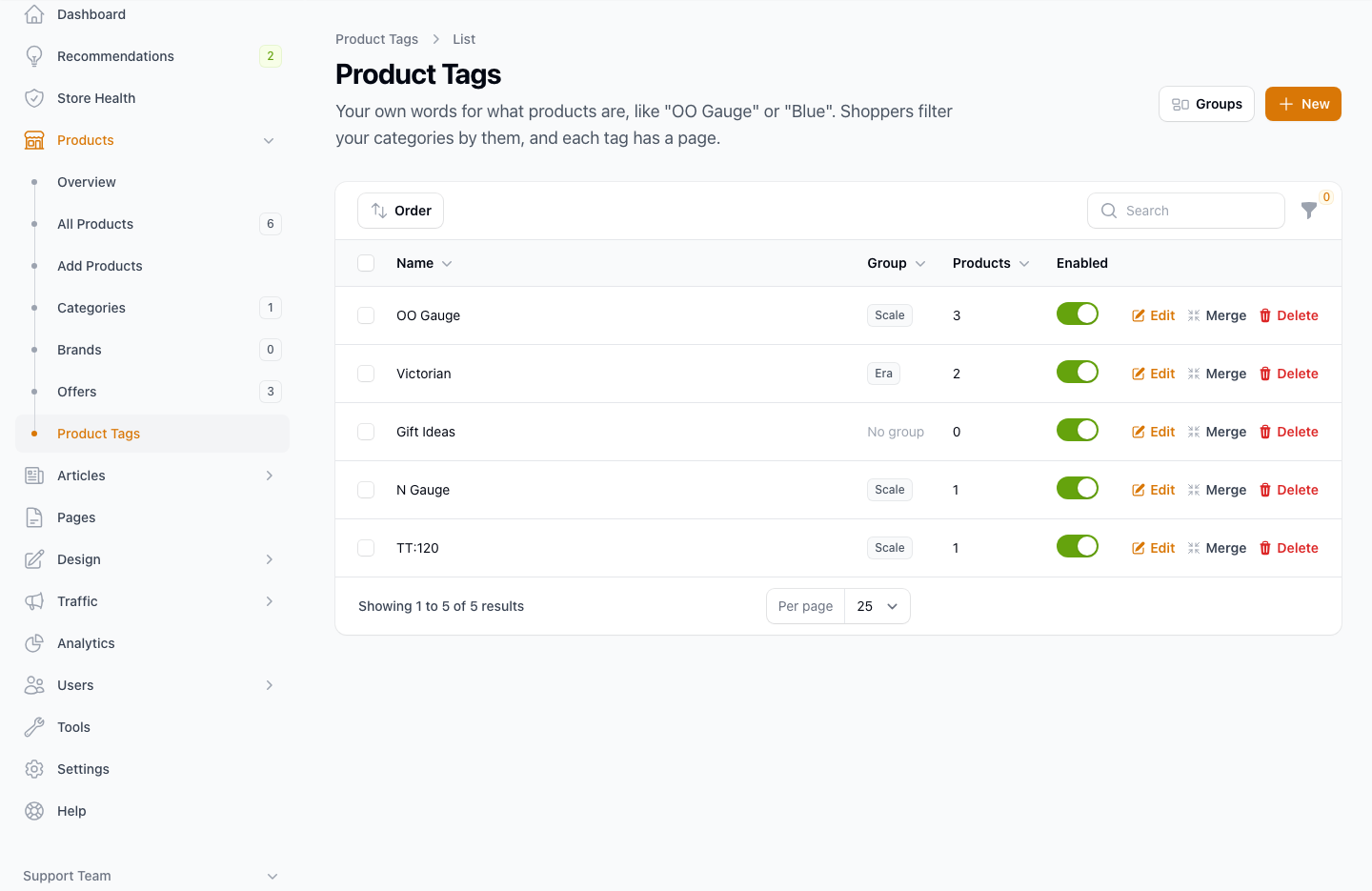
A tag name cannot hold a colon followed by a space, because that is how a CSV file or the Store API names a group. "1:76" is fine.
Step 3: Tag Your Products
One product at a time
- Open the product's edit page.
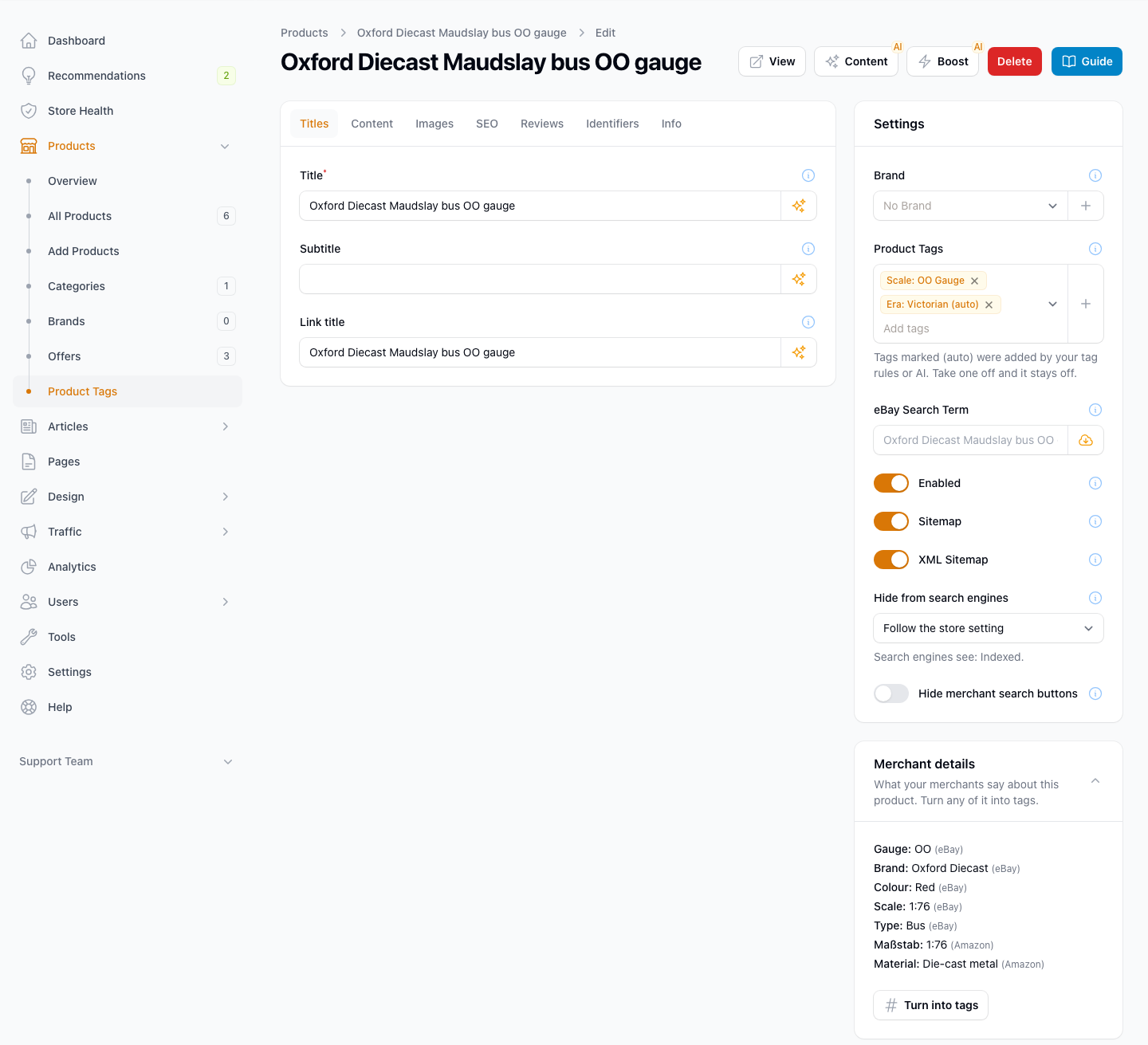
- In the Settings panel, find Product Tags.
- Pick tags from the list, or click + to make a new one.
- Click Save changes.
From what merchants list
Under the Settings panel, Merchant details lists everything the product's merchants say about it, such as eBay item specifics and Amazon product details, with the merchant beside each value.
- Click Turn into tags.
- Tick the details you want.
- Under Add them as, choose A tag for each value, named after it or One tag I pick. For new tags, you can pick a group in Put new tags in a group.
- Leave Tag other products with these values too on, so your tag rules tag other products that have the same value.
- Click Add tags.
Many products at once
- Go to Products > All Products.
- Tick the products.
- Open the bulk actions and choose Add tags or Remove tags.
- Pick the tags and confirm.
To see which products have a tag, or have none, use the Product Tag filter on the All Products list.
As products arrive
Open a Category Populator and pick tags in Tag new products with. Every product that populator adds gets those tags.
Step 4: Let Tags Fill Themselves In
Tag rules
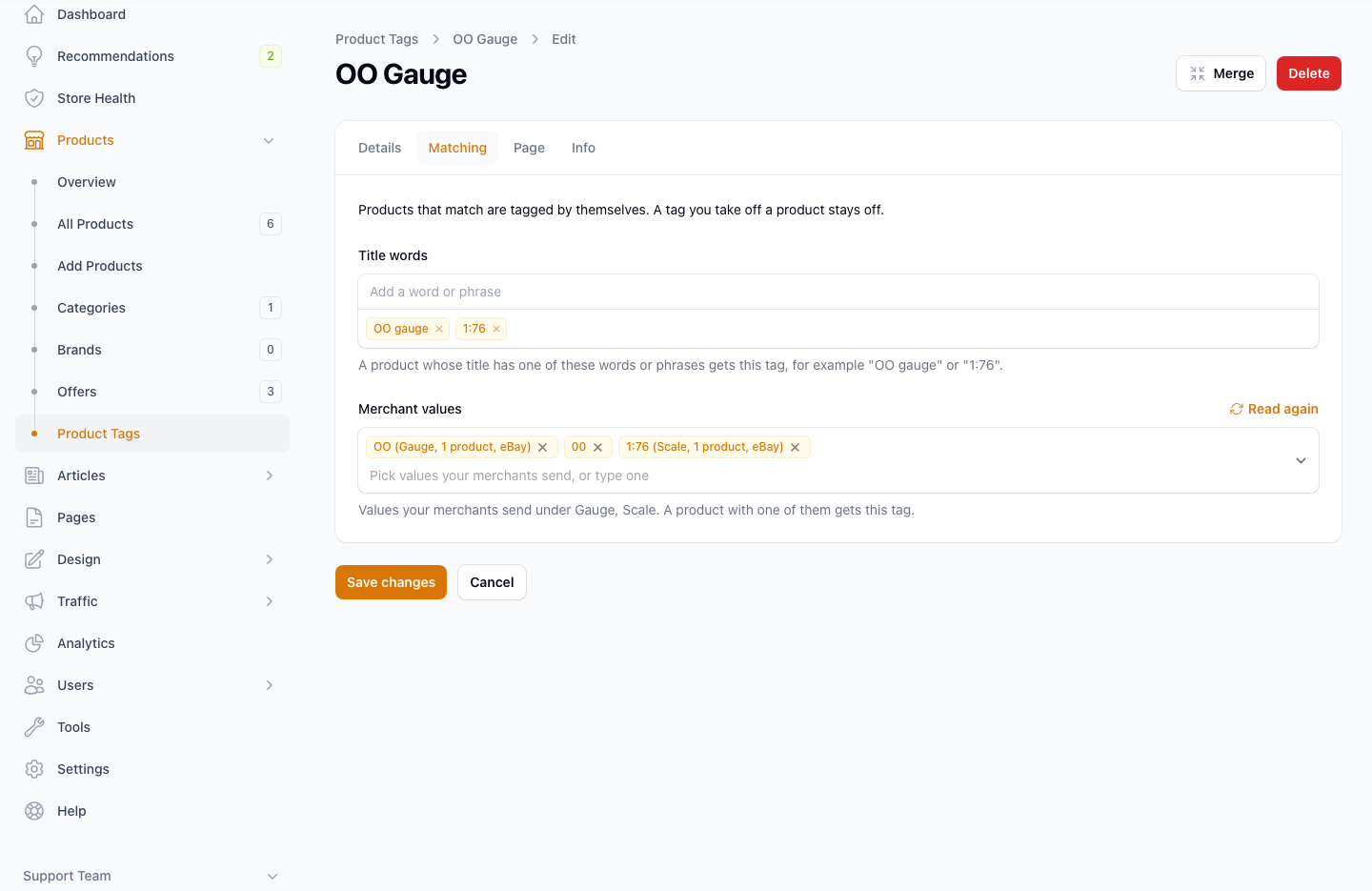
Each tag's Matching tab has two kinds of rule:
- Title words: a product whose title has one of these words or phrases gets the tag, for example "OO gauge" or "1:76".
- Merchant values: a product whose merchants send one of these values gets the tag. The list shows the values your merchants send, with how many products have each. If the tag's group has Merchant details, only values under those names are listed.
When you save a tag with rules, every product you have is checked in the background, and every new product is checked as it arrives.
Settings
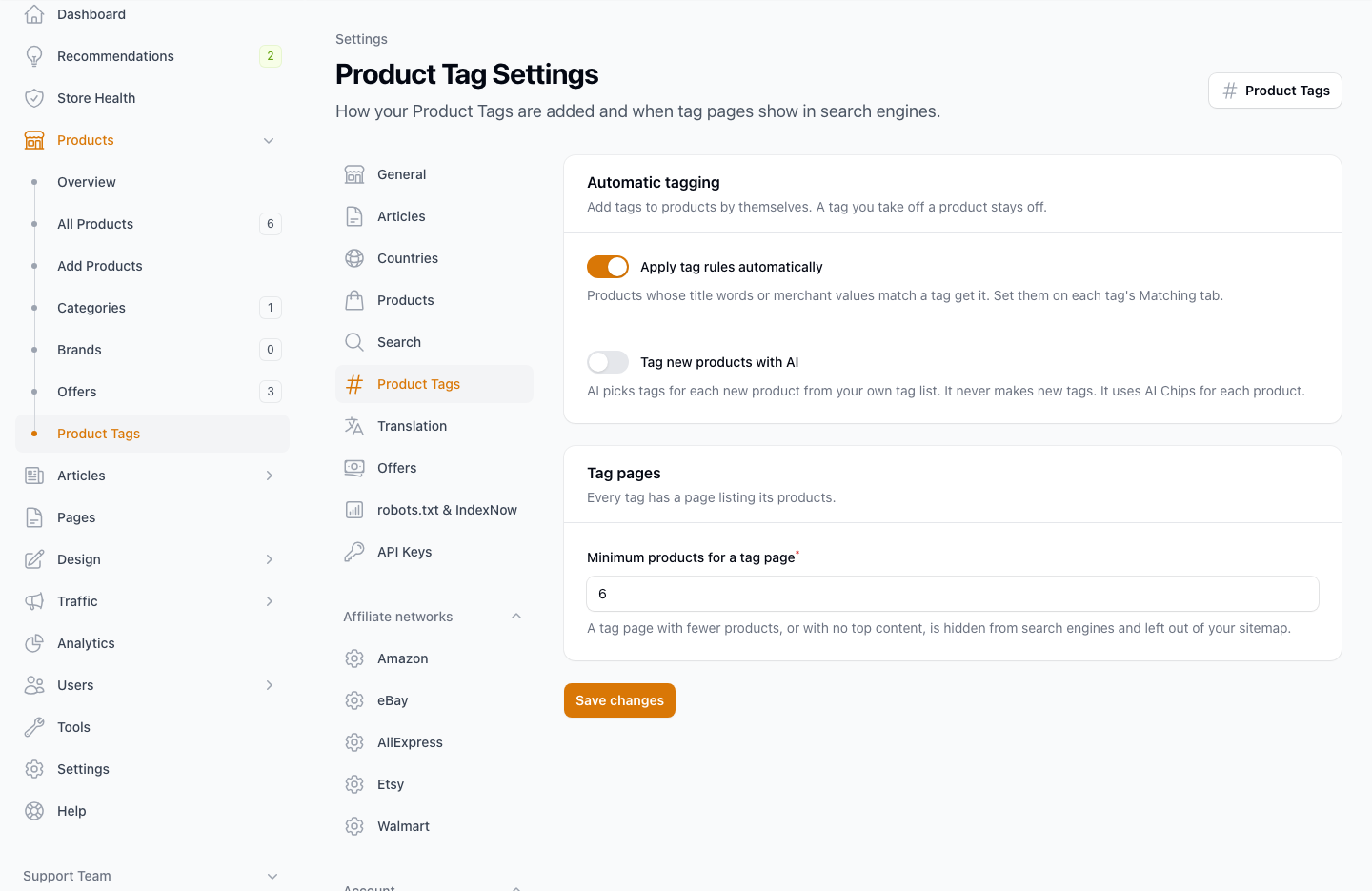
Go to Settings > Product Tags.
- Apply tag rules automatically is on by default. Turn it off and no rule adds a tag.
- Apply tag rules now checks every product against your rules again, in the background.
- Tag new products with AI is off by default. When it is on, AI picks tags for each new product from your own tag list. It never makes new tags. It uses AI Chips for each product.
Suggest tags with AI
For products you already have, go to Products > All Products, tick the products and choose Suggest tags with AI. AI picks from your own tags and uses AI Chips.
Tags added by rules or AI show as (auto) in the product's Product Tags field. Take one off and it stays off, and no rule or AI run adds it back. Add it again yourself if you change your mind.
Build Tags With AI
Not sure which tags to make? AI can suggest them for you.
- Go to Products > Product Tags and click Build tags with AI.
- AI suggests tag groups and tags from your categories, product titles and merchant details.
- Tick the ones you want and rename any you like.
- Click Create selected. Nothing changes in your site until you do.
What Shoppers See
On a category whose products have tags, a row of filters shows above the products for each group. Each filter shows how many products it has in that category. Tags with none there are hidden.
- Two filters in the same group show products with either tag, so a golfer can see Regular and Stiff flex together.
- Filters in different groups narrow the list, so Left Hand in Hand with Graphite Shaft in Shaft shows products that have both.
- All clears a row, and Clear all filters clears every row.
- A shopper can pick up to four filters at a time.
When a shopper picks one filter, a See all Left Hand link takes them to that tag's page, with every product that has the tag across your site.
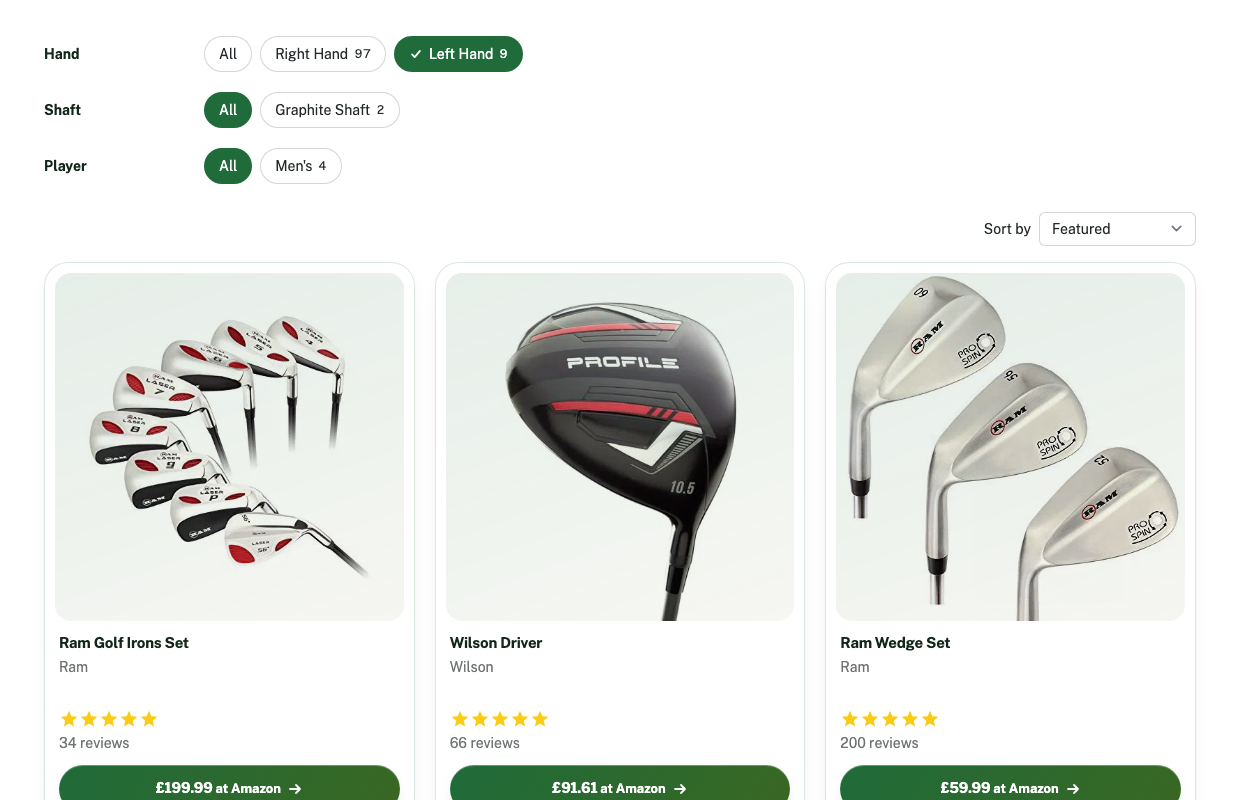
The filters are on by default. To hide them on one category, open the category and turn off Show tag filters in its Settings panel. To hide one group everywhere, turn off Show filters in your store on the group.
Tag Pages
Every tag has its own page at /tags/ followed by the tag's slug, listing every product with the tag. Fill it in on the tag's Page tab:
- Subtitle, Content Top and Content Bottom, with AI Create to write them for you.
- Slug, the end of the page address. Left empty, it is made from the name.
- Meta Title and Meta Description for search results.
- Hide from search engines, to keep the page out of search results and your sitemap.
Search engines see a tag page once it has Content Top and at least the number of products in Settings > Product Tags > Minimum products for a tag page (6 by default). Until then it is hidden from search engines and left out of your sitemap.
Each product page lists its tags as links, grouped like your filters, for example "Scale: OO Gauge".
Menus and the Shop by Tag Page
A Shop by menu in your header
- Go to Products > Product Tags and click Groups.
- Edit a group and turn on Show in menu.
- Save. Your header menu now has a Shop by entry named after the group, like "Shop by Scale", listing its tags.
The Shop by tag page
Your site has a Shop by tag page at /tags, listing every group and its tags. Your footer links to it.
A Shop by tag section
To show the same list on your homepage or any other page, open the page and add the Shop by Tag section.
Order, Merge and Delete
- Order on the Product Tags list sets the order tags show in.
- Merge moves a tag's products, title words and merchant values to another tag, then deletes it. Its old page sends visitors to the new one.
- Delete takes the tag off its products and removes its page. The products stay in your site.
CSV Import and Export
Add a tags column to your product CSV. Split several tags with |, and write each one as "Tag" or "Group: Tag". For example: Scale: OO Gauge|Era: Victorian|Gift Ideas
- A tag or group you do not have yet is made for you.
- A cell holding only - takes every tag off the product.
- Your product export includes the same column.
Store API
- GET /api/tags lists your tags and groups with product counts.
- GET /api/products/{id}/tags reads a product's tags.
- POST /api/products/{id}/tags sets a product's tags, by id (tag_ids) or by name (tags, as "Tag" or "Group: Tag").
- GET /api/products takes tag_id to list the products with a tag.
These need the products scope on your API key.
Tips
- Start with the one choice your shoppers make first, like scale or size. Add more groups later.
- Keep tag names short. They are buttons on a phone.
- Write Content Top for your best tags, so their pages can show in search.
- Open Merchant details on a few products to see what your merchants send, then add those values to your tags' Matching tab.
Troubleshooting
The filters do not show on a category
Check that products in that category have tags, that Show tag filters is on for the category, that the group has Show filters in your store on, and that the tags are Enabled.
A product did not get a tag from my rules
Check that Apply tag rules automatically is on in Settings > Product Tags, and that the product's title or Merchant details has one of the tag's values. If you took the tag off that product before, rules leave it off. Add it yourself.
My tag page is not in Google
A tag page needs Content Top and at least the minimum number of products. Check that Hide from search engines is off on the tag's Page tab.
The pages are greyed out
Product Tags opens to your account on the date shown on the page. Accelerator members have it first.