
Articles - Feature Guide
Creating articles is a good way to make your store unique and to attract interested customers. You can make your articles a personal review or an essay about a product or cover any topic in your niche. This guide will teach you more about Articles and how to create/manage them.
How to create Articles
From your store's Dashboard, go to Store > Articles:

There will be two options to create an article; Create article (Manual) and Article generator (AI):

Article Writer
Our AI powered Article Writer feature makes it easier and faster to create articles. You only need to push some buttons and type in some keywords.
For a full guide on how to use the Article Writer, please see this guide:
Manually Creating an Article
If you have a previously written article you want to use, or you want to create a new one on your own, you can choose this option.
Article Titles
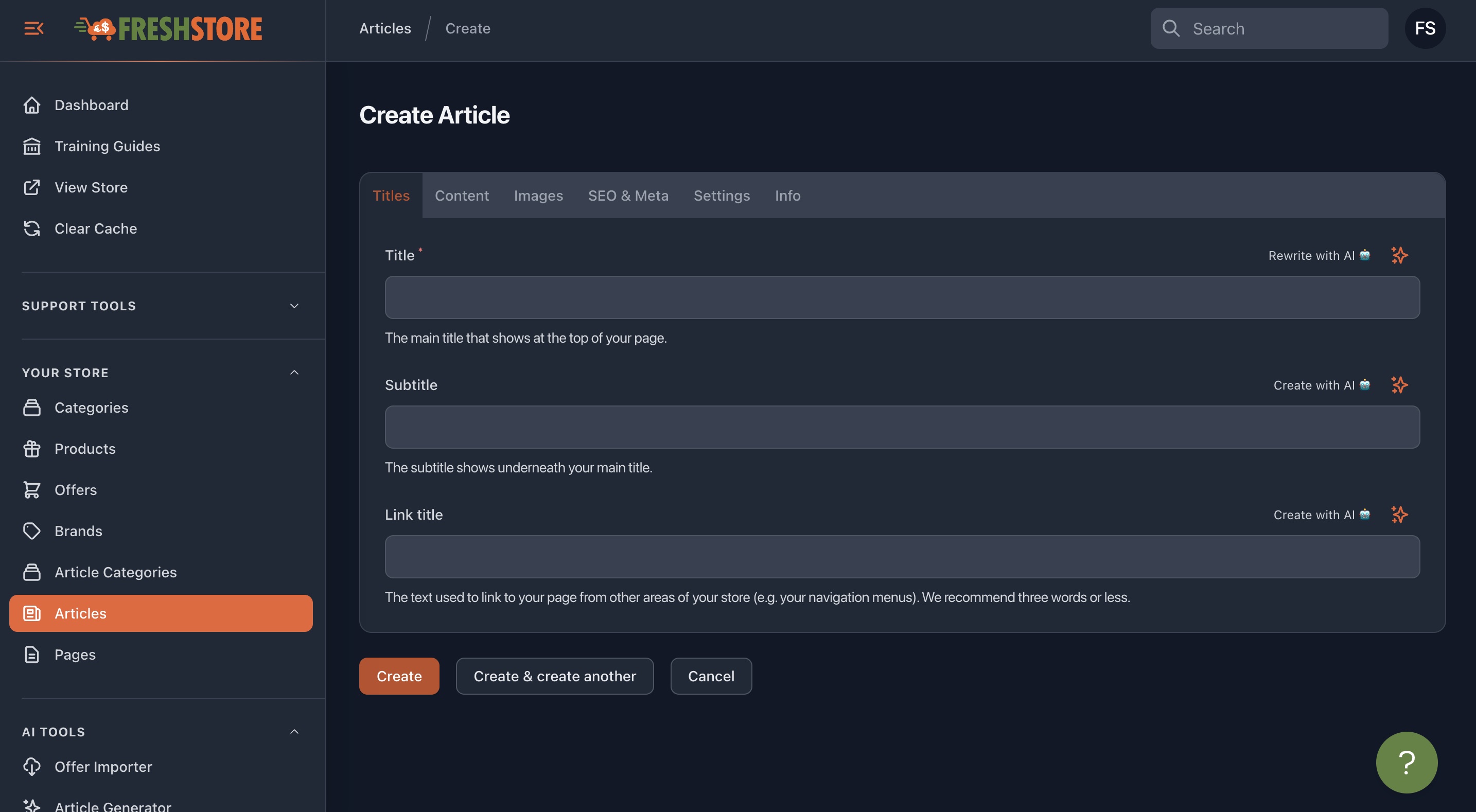
On this tab, your article's Title, Subtitle, and Link Title should be placed:
Article Content
The Content tab has the main article content. You can completely paste all of your content here or write it from scratch. This tab also allows you to add a product to your Article, showing the image, details, and a product page link.

Adding products to your articles is a great way to capture conversions and sales, and helps to boost SEO with internal linking.
Article Images
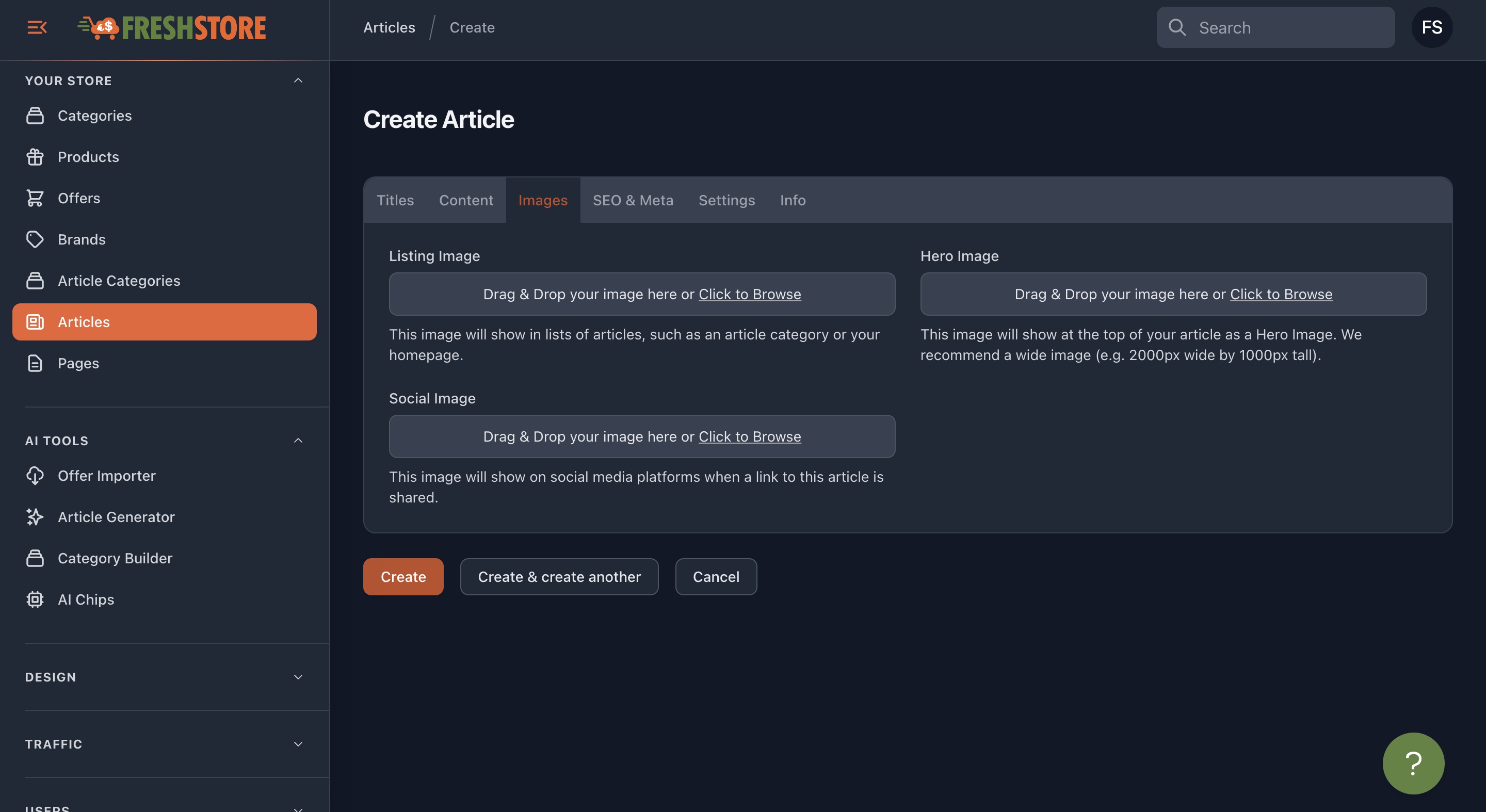
The Images tab gives you three options: Listing, Hero, and Social Images:
SEO & Meta
This tab will show the unique part of your page's URL and Meta fields for SEO. You can generate the content using AI or write your own.

Settings
The Settings tab contains options such as enable/disable and showing it in Sitemap. You can also set the publish date here.

Article Categories
Article categories help you organise your articles into groups so visitors can browse by topic. This is important once you have more than a few articles, as it improves navigation and search engine performance.
How to create an article category
- Go to Articles in your store dashboard
- Click the Article Categories tab at the top
- Click Create Category
- Fill in the category name, content, and images
- Save the category
How to assign an article to a category
- Edit the article you want to categorise
- Go to the Settings tab
- Select the category from the dropdown
- Save the article
You can also move articles between categories. See: How to move an Article into an Article Category
Troubleshooting article categories
- Categories not showing on your store? Make sure the category has at least one published article assigned to it. Empty categories may not appear on the storefront.
- Category not appearing in the dropdown? Make sure the category is created under Articles > Article Categories, not product categories. Article categories and product categories are separate.
- Articles not showing in a category? Check that the article is enabled (not disabled) in its Settings tab, and that it is assigned to the correct category.
Article Authors
You can set an Author for your article which will show on your store and provide Rich Results in the search engines.
Your store has a "Default Author" setting which will apply to all articles. You can find this in your Store Settings section. Alternatively, you can set a unique Author per article.
Article Meta
Your Article Meta refers to the publish date, author, and the categories it belongs to.
There is a setting in your Store Settings to show or hide this Article Meta.