Categories - Feature Guide
Categories and subcategories organise your store, so visitors can browse straight to what they want. This guide covers how to create them, order them, choose what shows in your menu and put products in them.
Creating Categories
You have two options: let AI build them for you, or create them by hand.
Creating Categories with AI
Go to Store > Products > AI Tools > Category Builder. It uses your store niche to build your categories, subcategories and all their content.
On a store with no categories yet, you will also see a Category Builder button on Store > Products > Categories. Once your store has categories, that button is replaced by Fill Categories, and the Category Builder stays in the AI Tools menu.
To find out more, see our Category Builder feature guide.
Creating Categories by Hand
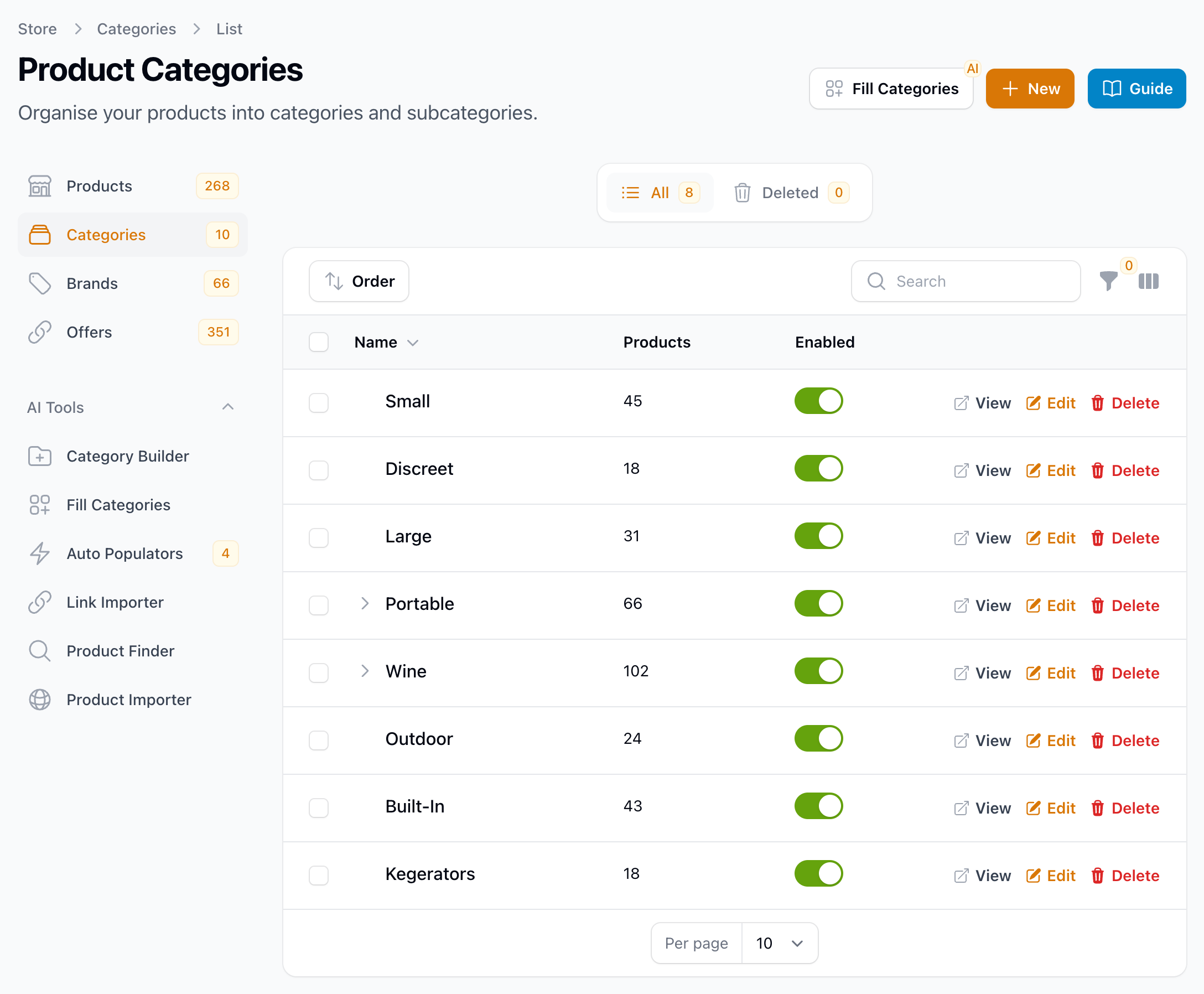
Go to Store > Products > Categories > New and fill in the fields for your new category. Then click Create, or Create & create another to go straight on to the next one.
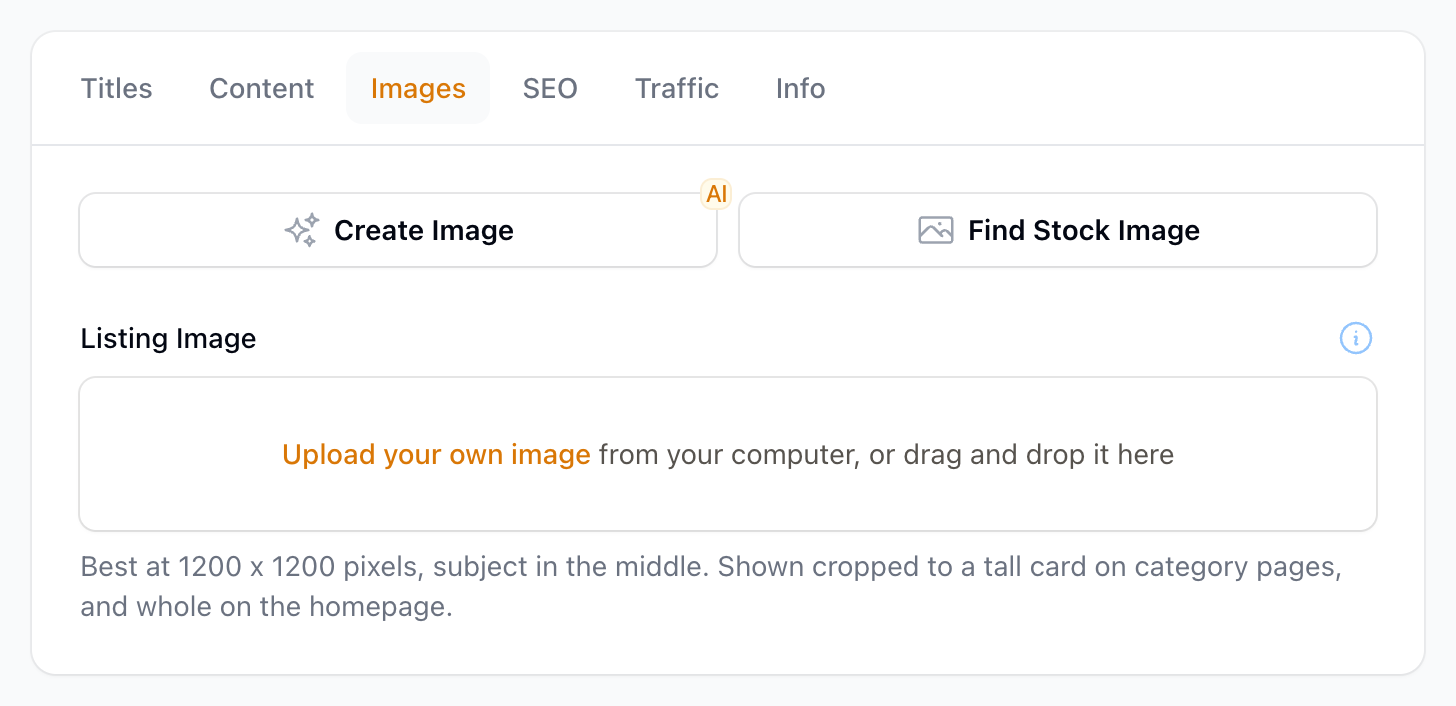
TIP: AI can help with each part. The title fields have an AI button, the content fields have AI Create, and once the category is created, its Images tab can create an image with AI or find a stock image.
Subcategories
Subcategories split a category into smaller groups.
Creating a Subcategory
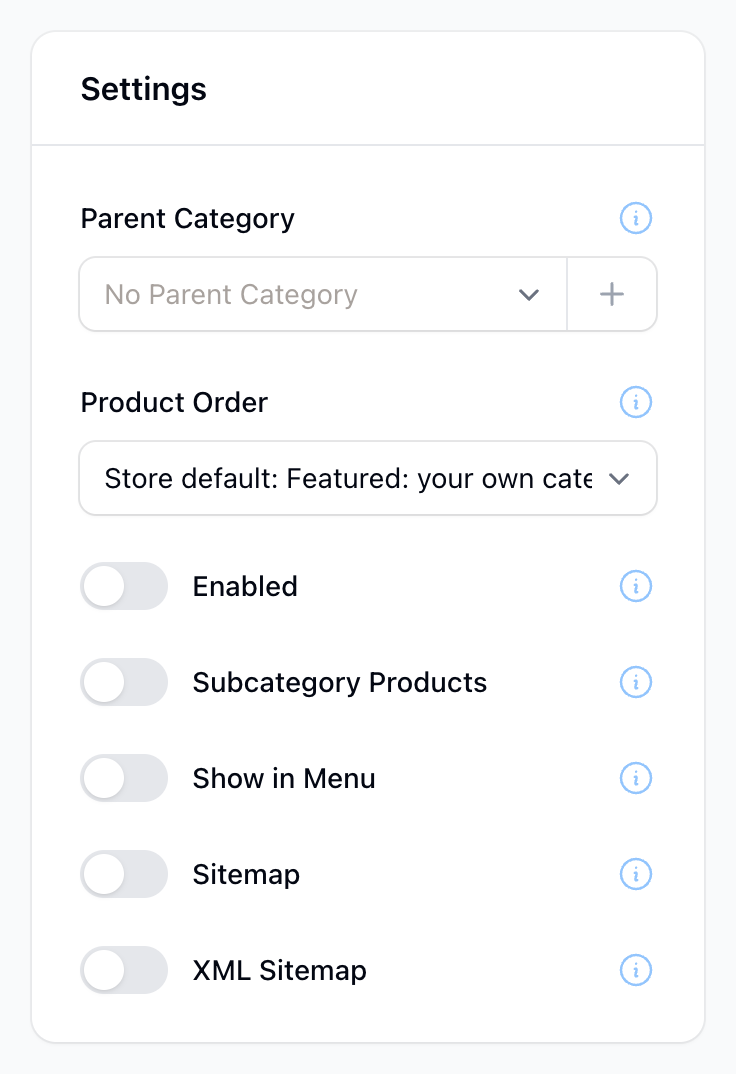
Create it the same way as a category, at Store > Products > Categories > New, and choose its Parent Category in the Settings panel. The parent category needs to exist first.
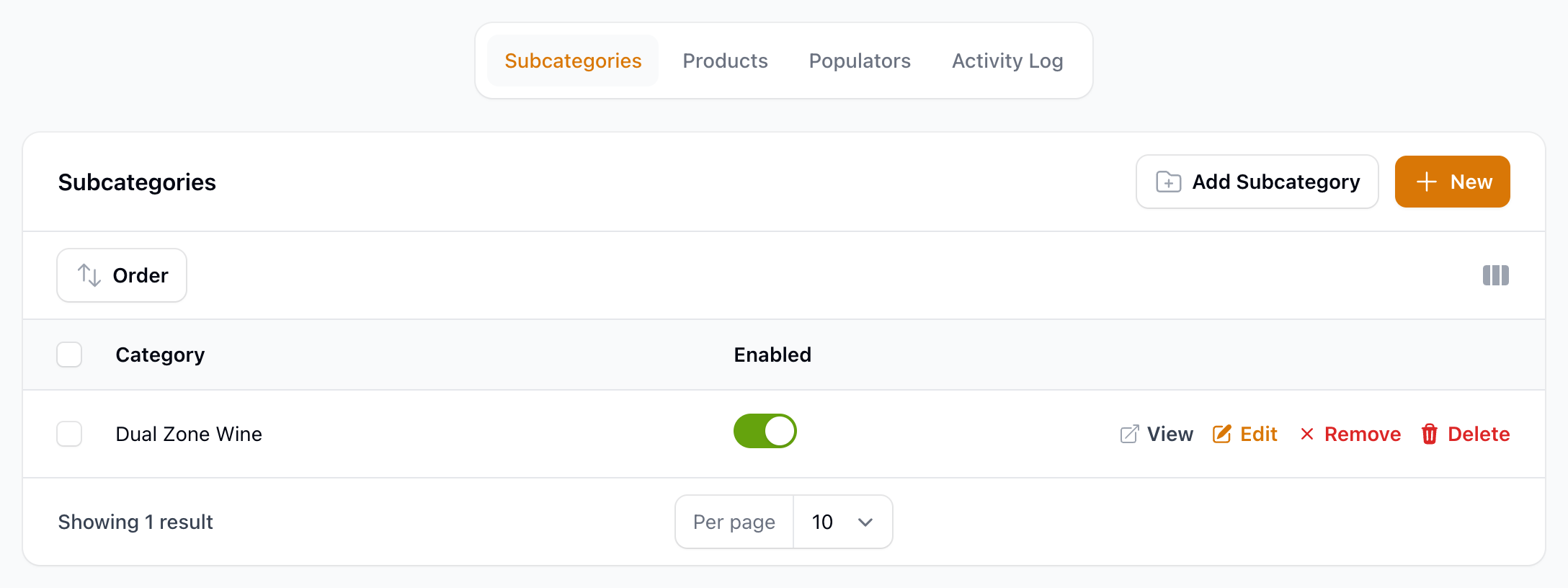
You can also open any category and go to its Subcategories tab. Click New to create a subcategory there, or Add Subcategory to move an existing category under this one.
Building Subcategories with AI
The Category Builder creates subcategories along with your categories, so there is nothing extra to do.
Is there a limit on categories or subcategories?
No. You can create as many categories and subcategories as you want.
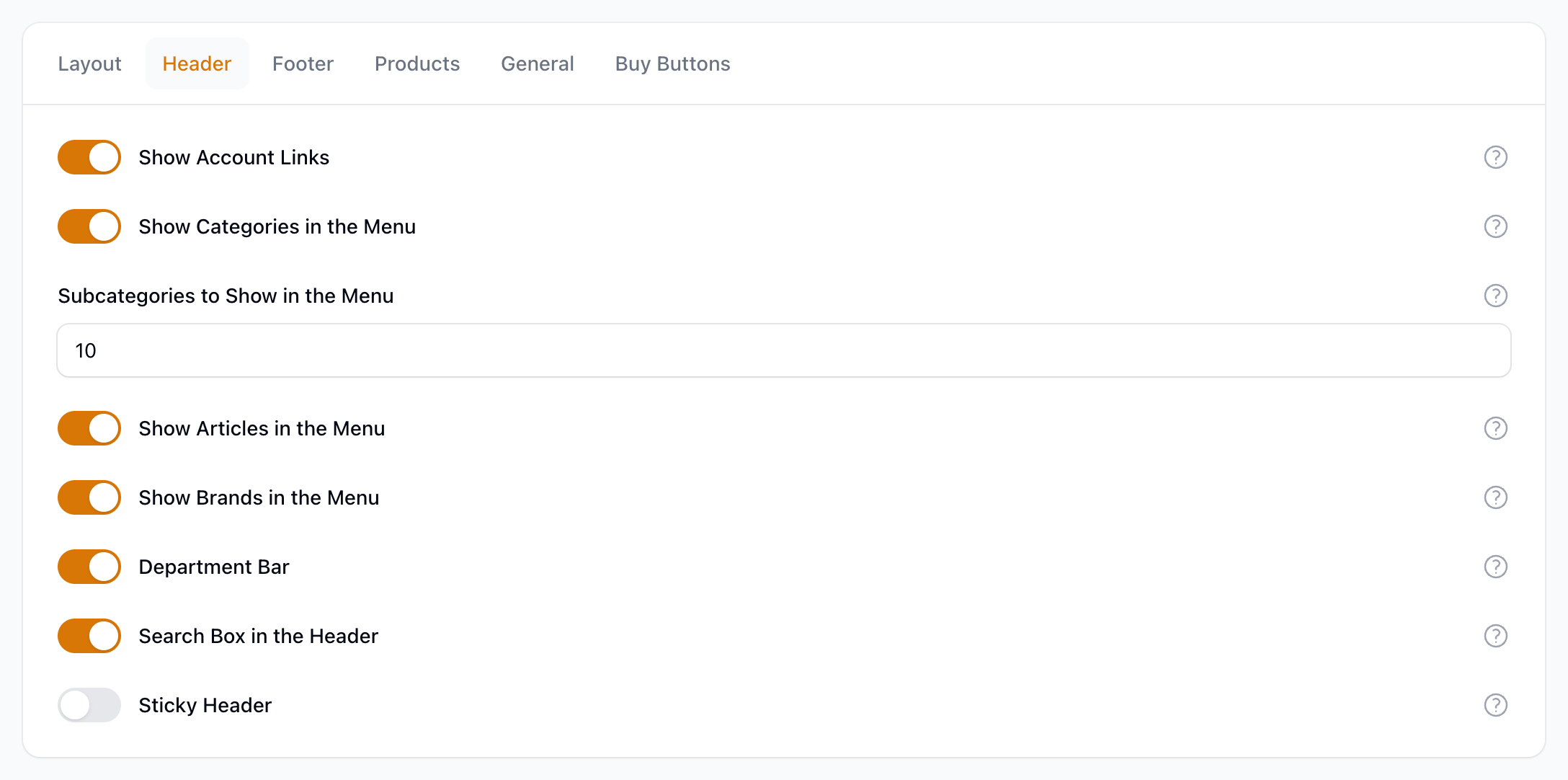
Your store's top menu shows up to 20 top-level categories, in the order you set, and 10 subcategories under each by default. To show more subcategories, go to Design > Store Options, open the Header tab and change Subcategories to Show in the Menu (up to 100). Categories that are not in the menu are still live at their own links.
Reordering Categories
The order you set here is the order in your store and in your menu.
- Go to Store > Products > Categories.
- Click the Order button.
- Drag the categories into your preferred order.
- Click Save Order.
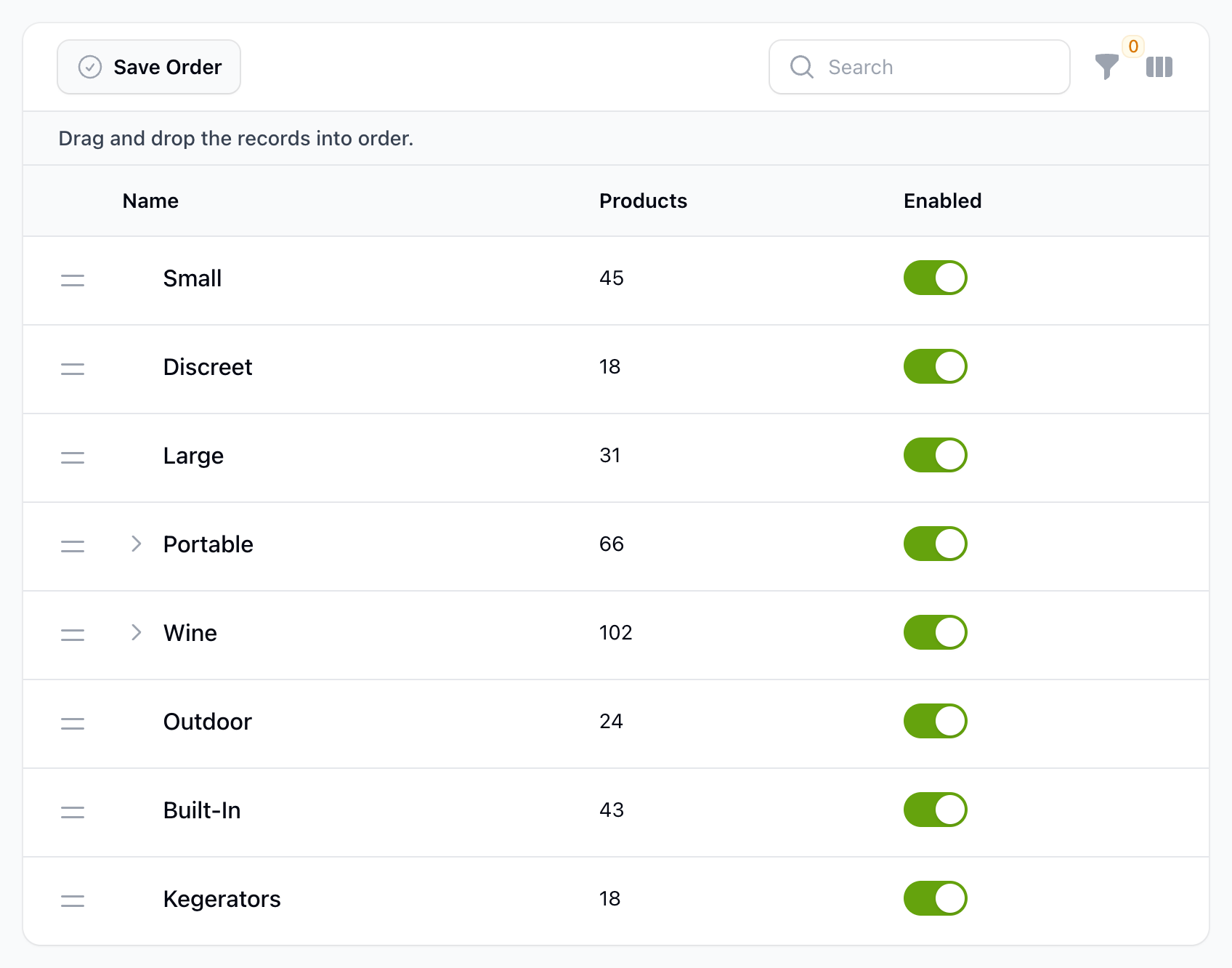
To reorder subcategories, open the parent category, go to its Subcategories tab and use the Order button there in the same way.
The order of products on a category page is set by Product Order in the category's Settings panel. Leave it empty to use your store's default.
Enabling and Disabling Categories
Open the category and switch Enabled on or off in the Settings panel, then click Save.
Hide a category without disabling it
To keep a category live but take it out of your store menu, switch off Show in Menu in the same Settings panel. For a subcategory, switch off Show on Parent Page to leave it out of the subcategory list on its parent category page.
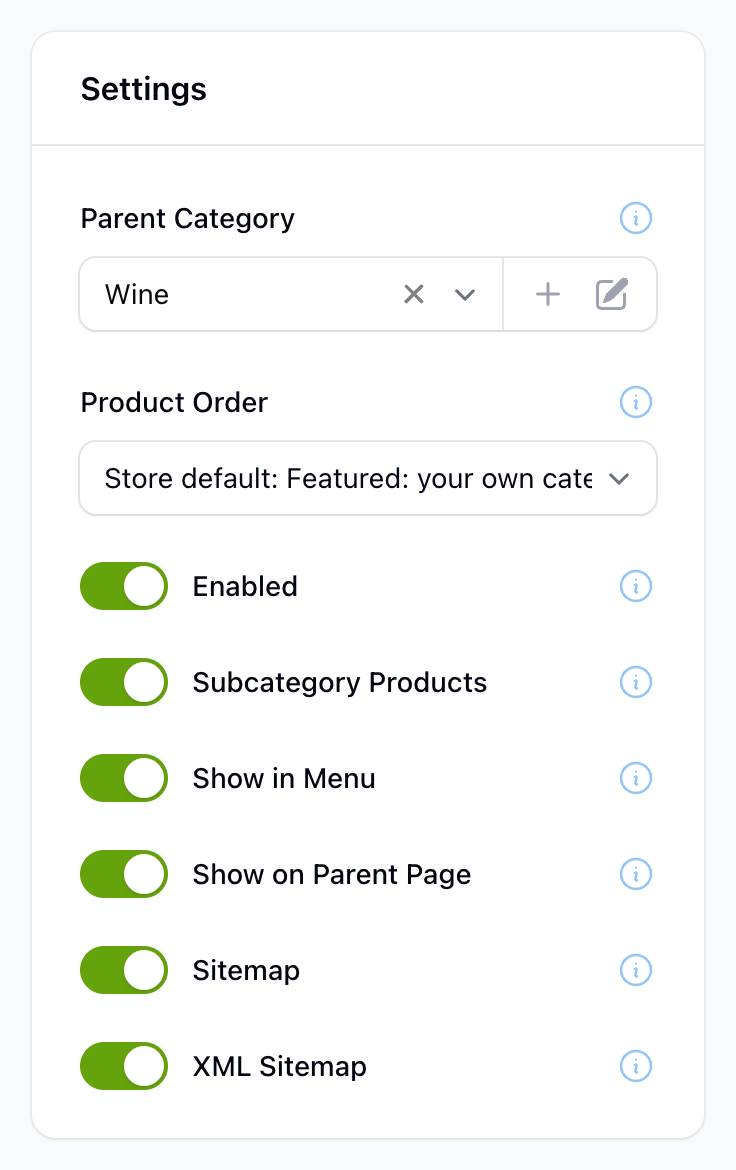
The category page stays live at its own link and stays in your sitemap.
Adding and Removing Products
There are several ways to put products in your categories.
From the Category
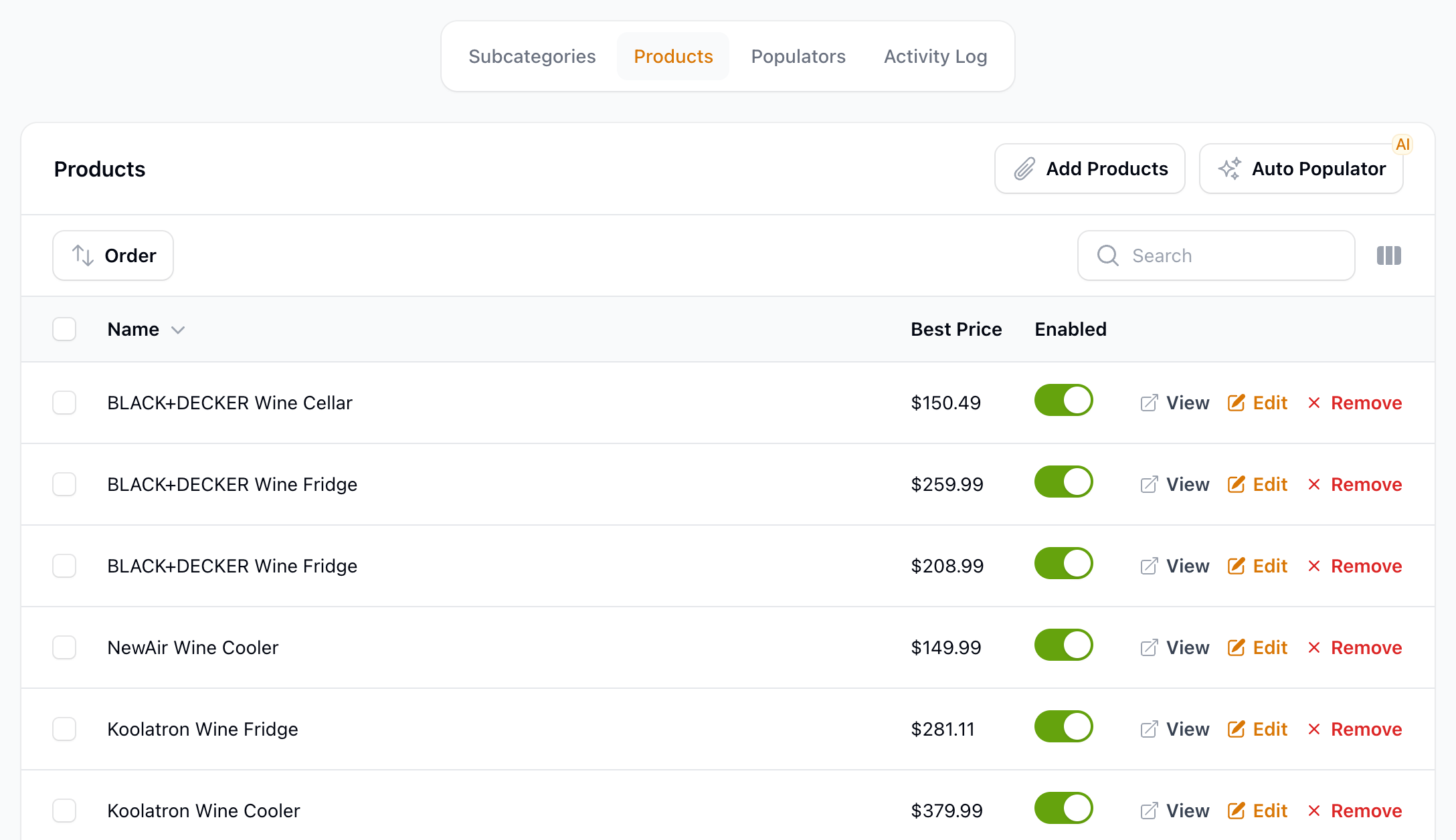
Open the category, go to its Products tab and click Add Products. Search for the products you want, select them and click Add. Only products already in your store appear in the list. To take a product out of the category, click Remove on its row.
The same tab has an Auto Populator button, which adds products to this category automatically every day.
From the Products List
This is handy when you want to look through your products first and then decide where they go.
- Go to Store > Products > Products.
- Tick the products you want to move.
- Open Actions and choose Add to Category.
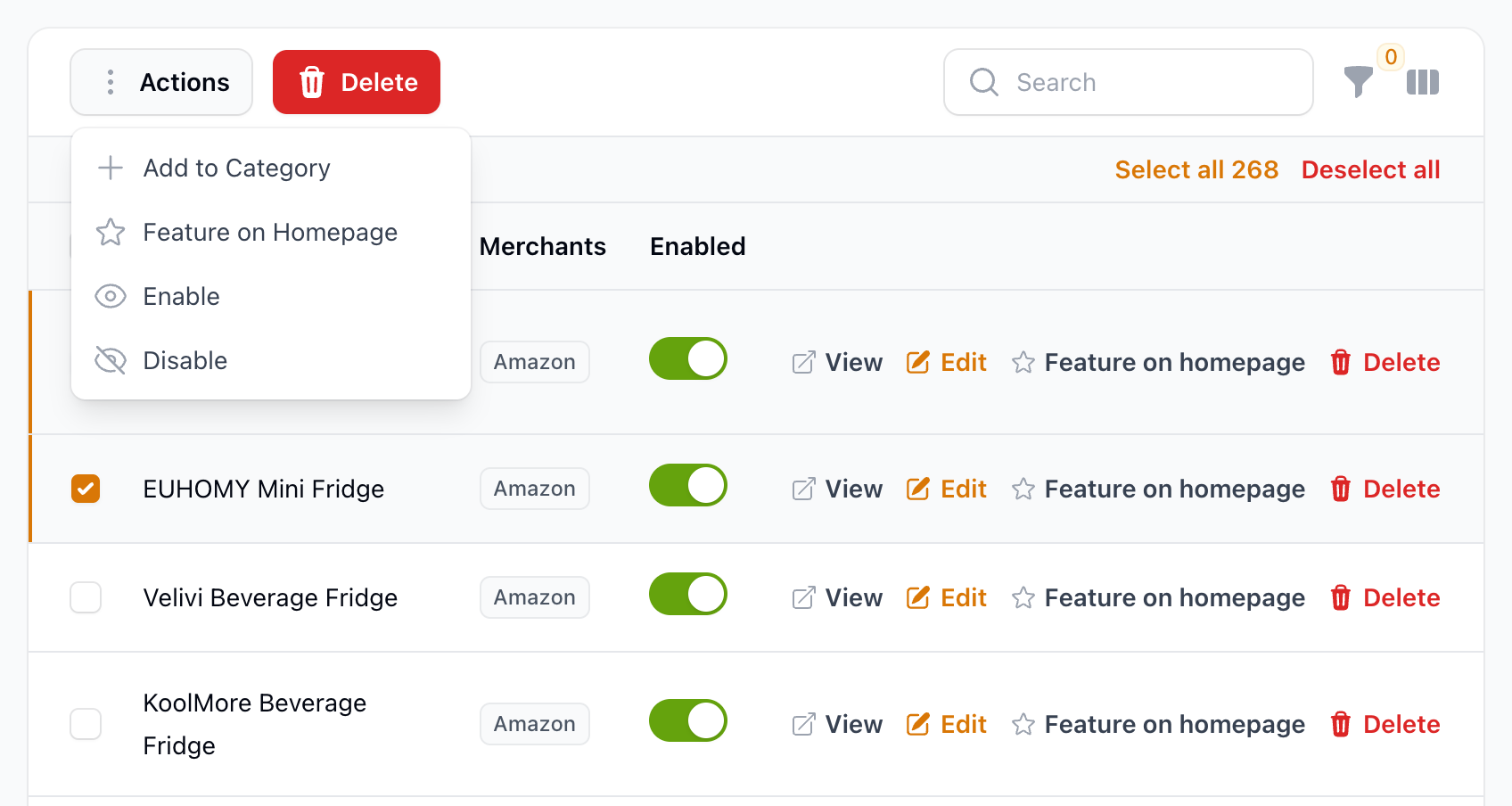
You can also open a single product, go to its Categories tab and click Add Categories.
When You Import Products
Product Finder, Link Importer, Product Importer and Fill Categories all ask which categories the new products should go in, so they land in the right place straight away.
🔗 How to add products to your store
Listing Image
Each category has a Listing Image, which shows on your homepage and other pages.
If you don't add one, your store borrows an image from one of the category's products. To use your own, open the category and go to its Images tab.