
Social Links - Feature Guide
To promote your store, we recommend creating social media accounts for it. You will place your social link handles in your store under Traffic > Social Media > Social Links. Here you can add your X, Pinterest, YouTube, Instagram, Facebook page and Facebook group handle, TikTok, LinkedIn page, Tumblr and Discord Server. You can also add a WhatsApp link and one custom link.
You do not need to include the full URL or link. Each field has a prefix already (e.g. https://facebook.com/). You only need to enter the handle, page name, or ID that comes after it.
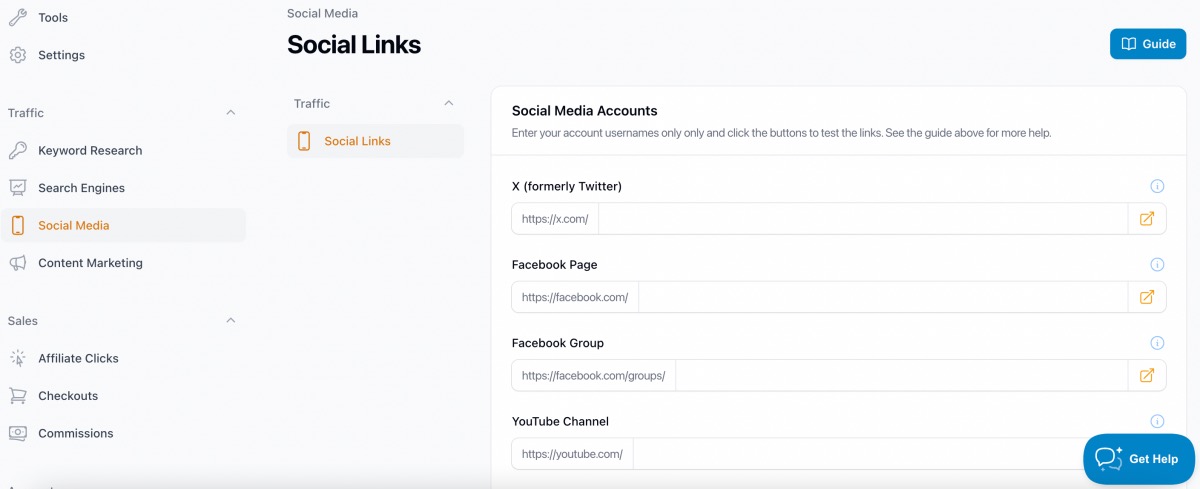
What to enter for each platform
| Platform | What to enter | Example |
|---|---|---|
| X (Twitter) | Your handle without the @ | yourstorename |
| Facebook Page | Your page name or numeric ID | YourPageName or 61577534774384 |
| Facebook Group | Your group name or numeric ID | yourgroupname |
| Your username | yourstorename | |
| YouTube | Your channel handle | @yourstorename |
| Your username | yourstorename | |
| TikTok | Your username | @yourstorename |
| Your company page name | your-company-name | |
| Tumblr | Your blog name | yourstorename |
| Discord Server | The invite code from an invite that never expires | abc123XYZ |
Facebook pages with a numeric ID
Some Facebook pages do not have a vanity username. Instead, the URL looks like facebook.com/profile.php?id=61577534774384 . In this case, enter just the numeric ID (e.g. 61577534774384 ) into the Facebook Page field. The link will work with the numeric ID.
To find your Facebook page name or ID:
- Go to your Facebook page
- Look at the URL in your browser's address bar
- The part after
facebook.com/is what you enter. If it showsprofile.php?id=12345, enter just the number12345.
Tip: If you want a cleaner URL, you can set a vanity username for your Facebook page in your Facebook Page settings under "Username".
Other Links: WhatsApp and a custom link
The Other Links section takes the whole web address, not a handle.
- WhatsApp: a wa.me chat link, a group invite link or a channel link. You can also enter your phone number with the country code, and it is turned into a wa.me link.
- Custom Link: any other page you want in your footer, such as a Blogger blog. Enter the full address, for example https://yourblog.blogspot.com.
- Custom Link Label: the text shown beside the custom link, up to 30 characters. Leave it empty to show the site name.
Each link shows as an icon in the social links row of your store footer. Click the arrow button beside a field to test the link.
Creating your Social Media Profiles
To find out how to create your social media profiles for your store, follow the Social Traffic section in the Profit Playbook: